

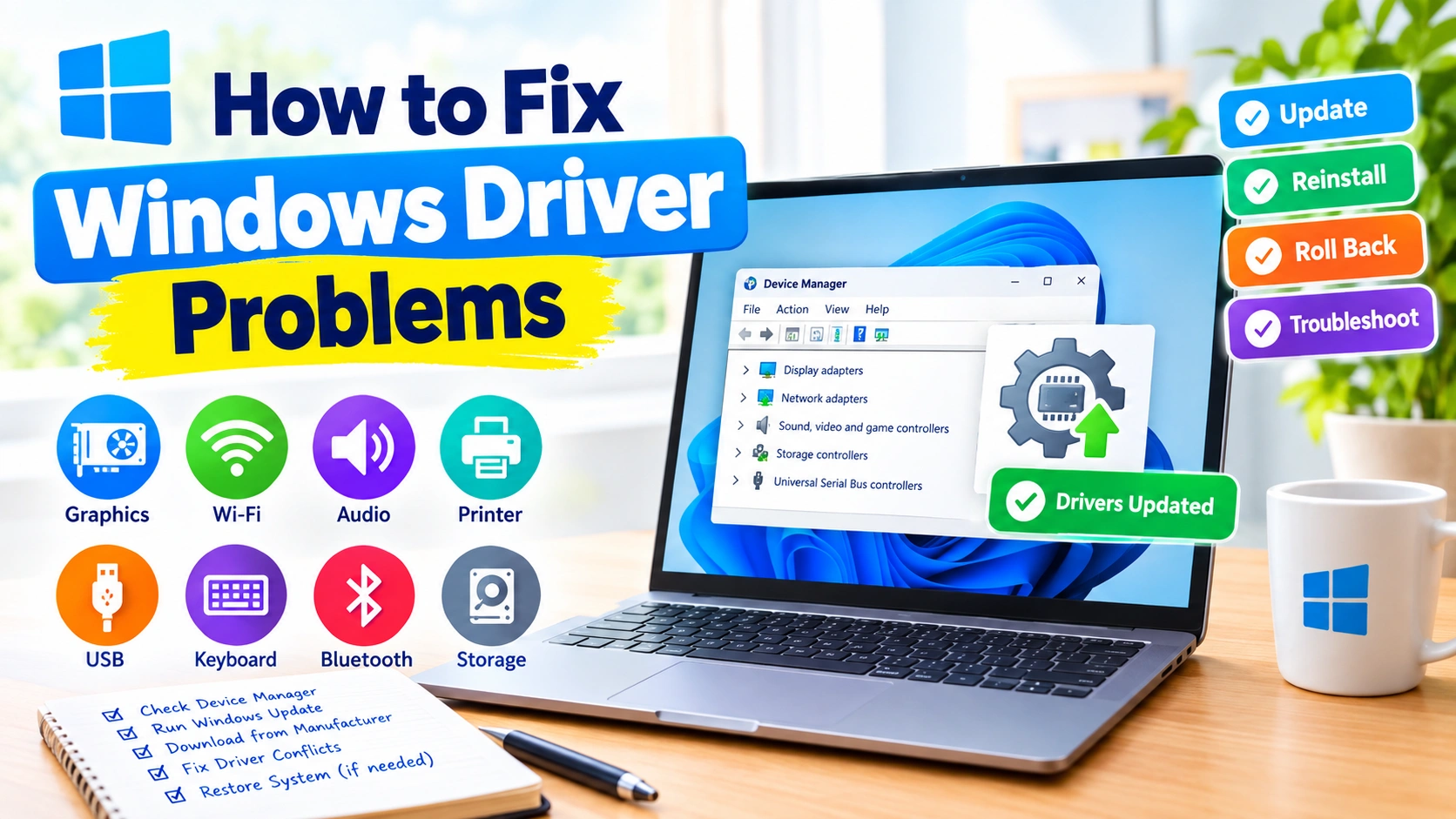
Windows drivers act as translators between your operating system and hardware such as graphics cards, Wi-Fi adapters, printers, keyboards, storage devices, and audio components. When a driver becomes outdated, corrupted, incompatible, or incorrectly installed, you may experience anything from missing hardware to crashes, poor performance, or the dreaded Blue Screen of Death (BSOD).
Fortunately, most Windows driver problems can be diagnosed and fixed without reinstalling Windows. This guide explains practical troubleshooting methods, starting with the simplest solutions and progressing to more advanced repairs.
What Is a Windows Driver?
A driver is software that allows Windows to communicate with a hardware device. For example, a graphics driver helps Windows communicate with your GPU, while a network adapter driver enables your computer to connect to Wi-Fi or Ethernet networks.
Windows includes many built-in drivers, and Windows Update can automatically install driver updates. However, manufacturers sometimes provide newer or specialized drivers through their own websites.
Driver problems commonly occur after:
- A Windows update
- Installing new hardware
- Upgrading an existing device
- Installing incompatible software
- Using an incorrect driver
- Corrupted system files
- Malware infections
- Unexpected shutdowns
- Removing or modifying hardware
Common Signs of Driver Problems
Identifying the symptoms can help determine whether a driver is responsible.
Common warning signs include:
- A device suddenly stops working
- Wi-Fi or Bluetooth disappears
- No sound is available
- The screen flickers or goes black
- Graphics performance becomes unusually poor
- USB devices are not detected
- Windows displays a yellow warning icon in Device Manager
- A device repeatedly disconnects
- Applications crash when using specific hardware
- Windows freezes or restarts unexpectedly
- A BSOD appears after installing or updating a driver
If the problem started immediately after a driver update, rolling back that driver may be particularly useful.
1. Restart Your Computer
Before making complicated changes, restart Windows.
A restart can clear temporary driver problems, reload hardware services, and complete pending driver installations. If a device has stopped responding temporarily, this simple step may restore it.
If the problem returns after every restart, continue with the troubleshooting methods below.
2. Check Device Manager
Device Manager is one of the most useful built-in Windows tools for diagnosing driver problems.
To open it:
- Right-click the Start button.
- Select Device Manager.
- Expand the category containing the affected hardware.
- Look for warning symbols beside a device.
- Right-click the device and select Properties.
The General tab may display information about the device’s current status.
A yellow warning icon can indicate that Windows has detected a problem with the device or its driver.
Check the Device Status
Open the device’s properties and look under Device status. Windows may provide an error message or code that helps identify the problem.
Record the error code before searching for a solution. Different Device Manager errors can require different fixes.
3. Run Windows Update
Windows Update can deliver driver updates along with operating system updates.
Open:
Settings > Windows Update
Select Check for updates and install available updates.
Also check the optional update section when available. Windows may list additional hardware drivers there.
After installing updates, restart your computer and test the affected hardware again.
4. Update the Problem Driver
If Windows identifies a specific device with a problem, you can attempt to update its driver through Device Manager.
- Open Device Manager.
- Right-click the affected device.
- Select Update driver.
- Choose Search automatically for drivers.
- Follow the instructions provided by Windows.
This method is convenient, although Windows may not always locate the newest driver available from the hardware manufacturer.
5. Download Drivers From the Manufacturer
For important hardware, the manufacturer’s official website can be a better source for drivers.
Common examples include:
- Graphics card manufacturers
- Laptop manufacturers
- Motherboard manufacturers
- Printer manufacturers
- Network adapter manufacturers
- Audio hardware manufacturers
Before downloading a driver, identify the exact device model and Windows version.
Avoid downloading drivers from unfamiliar third-party websites. Incorrect or modified drivers can introduce additional compatibility and security problems.
6. Reinstall a Corrupted Driver
Updating a driver does not always fix corrupted installation files. In that situation, reinstalling the driver may help.
In Device Manager:
- Right-click the affected device.
- Select Uninstall device.
- Confirm the removal.
- Restart Windows.
- Allow Windows to detect the hardware again.
Depending on the device, Windows may automatically reinstall a compatible driver after restarting.
For specialized hardware, you may instead need to download the manufacturer’s driver and install it manually.
7. Roll Back a Recently Updated Driver
Sometimes a new driver introduces compatibility problems. If your hardware worked correctly before an update, rolling back the driver can be useful.
Open the device’s properties in Device Manager and select the Driver tab.
If available, select Roll Back Driver.
Follow the prompts and restart Windows.
The rollback option may be unavailable if Windows does not have a previous driver stored on the computer.
8. Use Windows Troubleshooting Tools
Windows includes troubleshooting features that can help identify certain hardware and system problems.
Depending on the device and Windows version, available troubleshooters may address areas such as:
- Audio
- Network connections
- Printers
- Bluetooth
- Windows Update
- Hardware-related problems
Open Settings and search for Troubleshoot to see the troubleshooting options available on your system.
9. Check for Driver Conflicts
Two drivers or software packages can sometimes interfere with each other.
This can happen after installing:
- A new graphics driver
- Virtual machine software
- Security software
- Hardware monitoring utilities
- Specialized USB devices
- Custom audio software
- Older device drivers
If the problem began after installing new software or hardware, temporarily removing the recent change can help determine whether it is responsible.
10. Repair Windows System Files
Driver problems can sometimes be caused by damaged Windows system files rather than the driver itself.
Windows provides built-in command-line tools for repairing system components.
Open Windows Terminal or Command Prompt as an administrator and run:
sfc /scannow
Wait for the scan to finish.
If Windows reports problems that could not be repaired, you can also use the Deployment Image Servicing and Management tool:
DISM /Online /Cleanup-Image /RestoreHealth
Restart Windows after the repair process completes.
In this guide, you will learn how to safely Repair Corrupted System Files Windows 11 using built-in tools like SFC and DISM, along with advanced troubleshooting methods.
11. Check Driver Updates After a Major Windows Upgrade
A major Windows upgrade can change how certain hardware components operate.
If a device worked before upgrading Windows but stopped working afterward, visit the computer or hardware manufacturer’s support page and look for drivers specifically designed for your current Windows version.
This is especially important for:
- Graphics hardware
- Chipsets
- Network adapters
- Storage controllers
- Audio devices
- Touchpads
- Laptop-specific components
12. Fix Graphics Driver Problems
Graphics drivers are responsible for many display-related problems.
Symptoms can include:
- Screen flickering
- Black screens
- Game crashes
- Poor graphics performance
- Incorrect screen resolution
- Display driver crashes
- Visual artifacts
Start by checking Windows Update and Device Manager. If the issue began after installing a graphics driver, consider rolling it back.
For persistent graphics problems, download the appropriate driver directly from the GPU or computer manufacturer’s official support page.
Make sure you select the correct GPU model and Windows version.
Graphics driver crashes in Windows can originate from software, system configuration, temperature, power delivery, or hardware.
13. Fix Network Driver Problems
A faulty network driver can prevent your computer from connecting to Wi-Fi or Ethernet.
First, restart the PC and router. Then check Device Manager > Network adapters.
Look for warning icons or missing adapters.
If the adapter appears but does not work correctly, update or reinstall its driver.
If the computer cannot access the internet, download the correct network driver using another device and transfer the installer to the affected computer with a USB drive.
14. Fix Audio Driver Problems
If Windows suddenly has no sound, check the audio device in Device Manager.
You can also open Settings > System > Sound and confirm that the correct output device is selected.
If the correct device is missing or has a warning symbol, reinstalling or updating the audio driver may restore functionality.
For laptops and desktops with specialized audio hardware, use the computer manufacturer’s support page when possible.
15. Use System Restore After a Bad Driver Installation
If a driver installation causes serious problems and System Restore is available, you may be able to return Windows to an earlier restore point.
Search Windows for Create a restore point, open the System Properties window, and select System Restore.
Choose a restore point created before the driver problem began.
System Restore does not normally remove personal files, but it can undo certain system and software changes.
16. Start Windows in Safe Mode
If a faulty driver prevents Windows from operating normally, Safe Mode can help isolate the problem.
Safe Mode starts Windows with a limited set of drivers and services.
It can be useful when:
- Windows crashes during startup
- A display driver causes repeated crashes
- A recently installed driver prevents normal operation
- You need to remove problematic software
Once in Safe Mode, you can use Device Manager to uninstall or roll back the problematic driver.
In this guide, you’ll learn several reliable ways to boot Windows 11 into Safe Mode, including methods for PCs that still start normally and computers that cannot reach the desktop.
17. Disconnect Recently Installed Hardware
If your driver problem began after connecting a new device, disconnect it temporarily.
Restart Windows and check whether the original problem disappears.
If it does, investigate the new hardware’s driver, firmware, compatibility requirements, and installation instructions.
This is particularly useful for USB peripherals, expansion cards, printers, docking stations, and external adapters.
18. Avoid Automatic Driver-Updater Programs
Third-party driver updater utilities may advertise the ability to update every driver automatically. However, installing drivers simply because a utility reports that they are outdated is not always necessary.
Windows and hardware manufacturers are generally safer sources for drivers.
Before installing a driver, consider whether you actually have a problem that the update is intended to solve.
A stable driver does not always need to be replaced just because a newer version exists.
19. Create a Restore Point Before Major Driver Changes
Before installing drivers for critical hardware, creating a restore point provides an additional recovery option.
To create one:
- Search for Create a restore point.
- Open the result.
- Select your Windows system drive.
- Click Configure if System Protection is disabled.
- Enable system protection if appropriate.
- Select Create.
- Give the restore point a descriptive name.
This can make it easier to recover if a driver installation causes unexpected problems.
20. When a Driver Problem Causes a BSOD
A defective or incompatible driver can sometimes trigger a Blue Screen of Death.
If you see a BSOD after installing a particular driver, note the error message or stop code.
Useful information can include:
- The stop code
- The driver file name, if displayed
- When the crash occurs
- What hardware was recently changed
- Whether the problem started after Windows Update
If Windows repeatedly crashes, use Safe Mode to remove or roll back the suspected driver.
For recurring BSODs, also consider checking Windows system files, memory, storage health, and recently installed hardware.
How to Prevent Future Windows Driver Problems
A few habits can reduce the likelihood of recurring driver issues.
Keep Windows Updated
Install normal Windows updates and security updates regularly. They can include compatibility fixes and hardware-related improvements.
Use Official Driver Sources
Download drivers from Microsoft, your PC manufacturer, or the hardware manufacturer’s official support site.
Keep Track of Major Changes
If you install several drivers or hardware components at once, it becomes harder to identify what caused a problem. Make changes individually when practical.
Create Restore Points
Create a restore point before major driver installations or hardware changes when System Protection is available.
Do Not Fix What Is Not Broken
A newer driver is not automatically better for every system. If your hardware is working properly, unnecessary driver changes can introduce new compatibility problems.
Frequently Asked Questions
How do I know if Windows has a driver problem?
Check Device Manager for warning icons, missing hardware, or device status errors. Sudden hardware failures, crashes, connection problems, and display or audio issues can also indicate driver trouble.
Can Windows automatically fix driver problems?
Windows Update and Device Manager can automatically install or update many drivers, but they cannot resolve every driver conflict or compatibility issue.
Should I uninstall a driver before installing a new one?
Not always. Many driver installers can update an existing driver automatically. If the current installation is corrupted or causing problems, uninstalling and reinstalling the driver may be more effective.
How do I fix a driver problem after Windows Update?
First, check Windows Update for additional updates. If the problem began immediately after a driver update, use Device Manager to roll back the driver when that option is available.
Can a bad driver cause a BSOD?
Yes. An incompatible, corrupted, or defective driver can cause system crashes, including BSODs.
Are third-party driver updater tools safe?
They can vary considerably. For greater control and compatibility, obtain drivers from Windows Update or the hardware manufacturer’s official website whenever possible.
What should I do if a driver prevents Windows from starting?
Try Windows Recovery options or Safe Mode. From there, you can often uninstall or roll back the problematic driver and restart Windows normally.
Final Thoughts
Windows driver problems can appear in many forms, from a single device that stops working to system-wide crashes. The most effective approach is to identify when the problem started, determine which hardware is affected, and then make one controlled change at a time.
Start with Windows Update and Device Manager before moving to driver reinstallation, rollback, system-file repair, Safe Mode, or System Restore. Most importantly, use drivers from trustworthy sources and avoid unnecessary driver changes. With a systematic approach, many driver-related Windows problems can be resolved without resetting or reinstalling the operating system.