

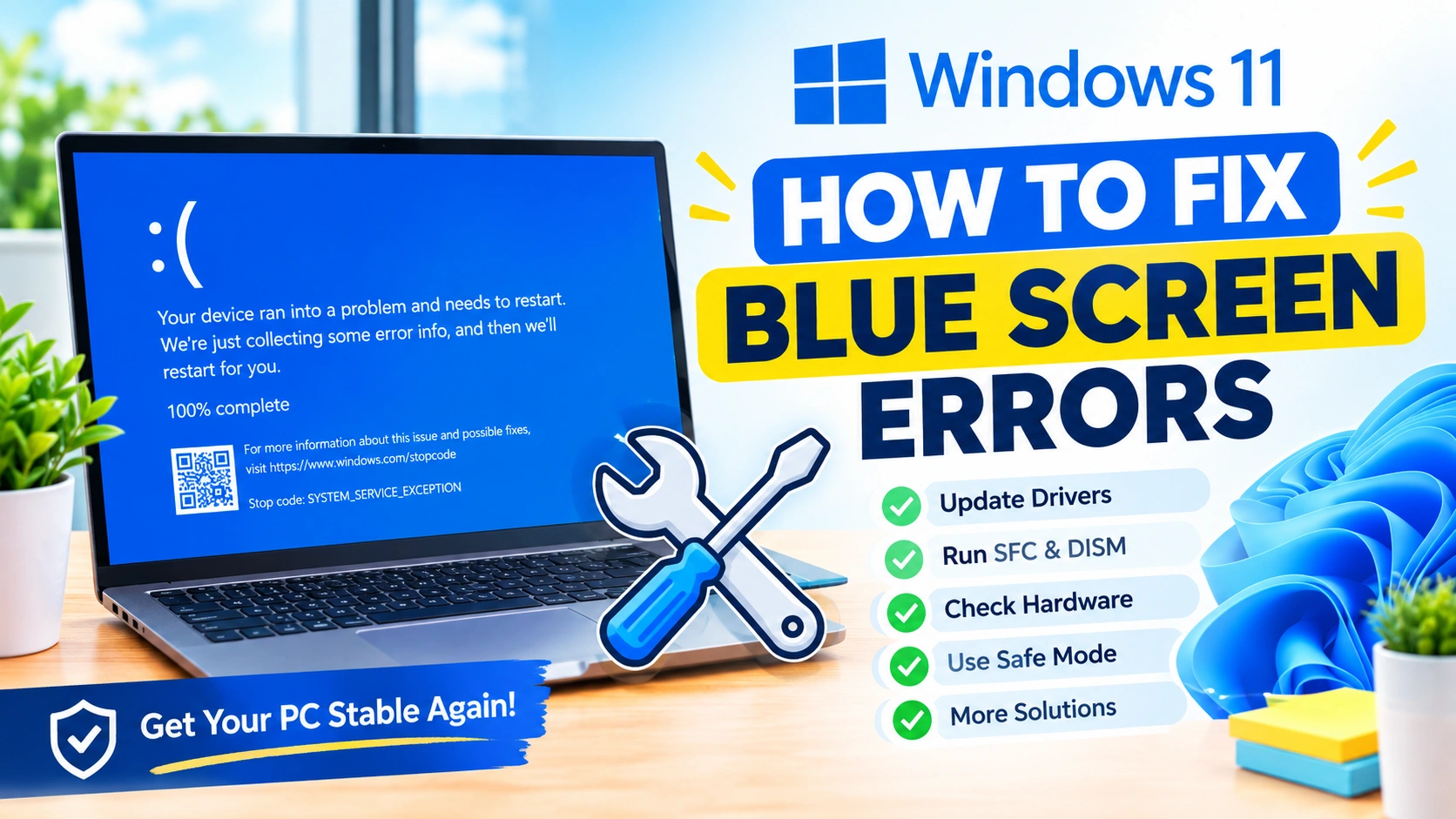
A blue screen error in Windows 11 can be frustrating, especially when your computer suddenly crashes, restarts, or becomes unresponsive. The error may appear while starting Windows, launching an application, installing an update, playing a game, or simply working on the desktop.
Windows 11 displays a blue screen when it encounters a serious system problem that it cannot safely recover from. These crashes are commonly called Blue Screen of Death (BSOD) errors.
Fortunately, a blue screen does not automatically mean that your computer is permanently damaged. In many cases, the underlying problem can be fixed by updating a driver, repairing corrupted system files, removing problematic software, checking hardware, or undoing a recent system change.
This guide explains how to troubleshoot and fix Windows 11 blue screen errors step by step.
What Causes Blue Screen Errors in Windows 11?
A BSOD usually occurs because Windows detects a problem that could cause data corruption or system instability.
Common causes include:
- Corrupted Windows system files
- Faulty or outdated device drivers
- Failed Windows updates
- Incompatible software
- Defective RAM
- Storage drive problems
- Overheating
- Hardware compatibility issues
- BIOS or firmware problems
- Overclocking instability
- Malware or unwanted software
- Damaged Windows installation
Windows normally displays a stop code on the blue screen. Examples include:
CRITICAL_PROCESS_DIEDSYSTEM_SERVICE_EXCEPTIONMEMORY_MANAGEMENTIRQL_NOT_LESS_OR_EQUALPAGE_FAULT_IN_NONPAGED_AREAKERNEL_SECURITY_CHECK_FAILUREVIDEO_TDR_FAILUREINACCESSIBLE_BOOT_DEVICE
The stop code can provide an important clue about the source of the problem.
Before You Start: Record the BSOD Information
If Windows crashes again, take a picture of the blue screen or write down the Stop code.
For example:
Stop code: MEMORY_MANAGEMENT
Also pay attention to whether the crash happens during a particular activity.
If the blue screen consistently occurs when:
- Opening a specific program
- Connecting a particular device
- Starting a game
- Using Wi-Fi
- Waking the computer from sleep
- Installing Windows updates
- Starting Windows
that information can help identify the cause.
1. Restart Your Windows 11 PC
The first step is surprisingly simple: restart the computer.
A temporary driver problem or system process failure can sometimes cause a one-time blue screen.
After Windows restarts, use the computer normally and check whether the problem returns.
If the BSOD happens repeatedly, continue with the troubleshooting steps below.
2. Disconnect Recently Connected Hardware
External hardware can sometimes cause Windows 11 to crash because of faulty drivers or compatibility problems.
Disconnect unnecessary devices such as:
- USB storage drives
- Printers
- USB hubs
- Webcams
- Game controllers
- Bluetooth adapters
- External network adapters
- Capture devices
Leave only essential peripherals connected, such as your keyboard and mouse.
Restart Windows and see whether the blue screen returns.
If the crashes stop, reconnect your devices one at a time. This can help identify which device is causing the problem.
3. Install Windows 11 Updates
Microsoft regularly releases Windows updates containing security fixes, bug fixes, driver improvements, and stability updates.
An outdated Windows installation can sometimes contribute to system crashes.
To check for updates:
- Press Windows + I.
- Select Windows Update.
- Click Check for updates.
- Install available updates.
- Restart your computer.
If the BSOD started immediately after a Windows update, however, the update itself could be responsible. In that situation, consider uninstalling the problematic update rather than installing additional changes blindly.
4. Update Your Device Drivers
Faulty drivers are one of the most common causes of Windows blue screen errors.
Pay particular attention to drivers for:
- Graphics cards
- Wi-Fi adapters
- Ethernet adapters
- Chipsets
- Storage controllers
- Audio devices
- Bluetooth hardware
To check drivers:
- Right-click the Start button.
- Select Device Manager.
- Expand a hardware category.
- Right-click the device.
- Select Update driver.
- Choose Search automatically for drivers.
For graphics and chipset drivers, it can be preferable to obtain the latest compatible driver directly from the hardware manufacturer’s official website.
Avoid downloading drivers from unknown third-party websites.
5. Check Device Manager for Warning Icons
Device Manager can reveal hardware problems that may be related to BSOD crashes.
Open Device Manager and look for devices displaying a yellow warning icon.
If you find one:
- Right-click the device.
- Select Properties.
- Open the General tab.
- Check the Device status message.
- Note any displayed error code.
- Update, reinstall, or roll back the driver as appropriate.
A problematic device driver can cause repeated crashes even when the hardware itself is working correctly.
6. Run System File Checker
Corrupted Windows system files can cause crashes and unexpected system behavior.
Windows includes the System File Checker (SFC) utility for detecting and repairing damaged system files.
Open Terminal or Command Prompt as administrator.
Then run:
sfc /scannow
Wait for the scan to reach 100%.
If SFC finds corrupted files, it will attempt to repair them automatically.
Restart the computer afterward.
What If SFC Cannot Repair the Files?
If SFC reports that it found corrupted files but could not repair some of them, use the Deployment Image Servicing and Management tool.
Run:
DISM /Online /Cleanup-Image /RestoreHealth
After DISM finishes, run SFC again:
sfc /scannow
Then restart Windows.
7. Check the Storage Drive for Errors
Problems with an SSD or hard drive can cause Windows crashes, corrupted files, slow performance, and boot problems.
Windows provides the CHKDSK utility for checking file-system and disk errors.
Open Terminal or Command Prompt as administrator and run:
chkdsk C: /scan
This performs an online scan of the system drive.
If Windows reports serious storage problems, further investigation may be necessary.
Also check your drive’s health using the manufacturer’s diagnostic software when available.
If the drive is showing signs of failure, back up important files before performing extensive repair operations.
8. Test Your RAM
Defective or unstable RAM can produce seemingly random blue screen errors.
Windows 11 includes a built-in memory diagnostic tool.
To use it:
- Press Windows + R.
- Type
mdsched.exe. - Press Enter.
- Select Restart now and check for problems.
- Allow Windows to perform the memory test.
The computer will restart and check the installed memory.
If the diagnostic reports memory problems, test the RAM modules individually if your computer allows it. A faulty memory module may need to be replaced.
If you recently installed new RAM, also make sure it is compatible with your motherboard.
9. Check for Overheating
Excessive heat can cause Windows instability and unexpected shutdowns or crashes.
Check whether the BSOD occurs during demanding tasks such as:
- Gaming
- Video rendering
- 3D applications
- Large file compression
- Extended CPU workloads
Possible overheating causes include:
- Dust buildup
- Blocked ventilation
- Failed fans
- Poor thermal contact
- High ambient temperatures
- Aggressive overclocking
Clean dust from the cooling system and make sure air can circulate properly.
For laptops, avoid using the computer on surfaces that block the ventilation openings.
10. Disable Overclocking
Overclocking can improve performance, but an unstable overclock can cause blue screen errors.
If you recently changed:
- CPU clock speed
- CPU voltage
- RAM frequency
- Memory timings
- GPU clock speed
return the hardware to its default settings.
If you use an XMP, EXPO, or similar memory profile and BSOD errors started after enabling it, temporarily disable the profile and test Windows again.
A system that crashes under memory-intensive workloads may be unstable even if it appears normal during everyday use.
11. Boot Windows 11 in Safe Mode
Safe Mode starts Windows with a limited set of drivers and services.
This can help determine whether a third-party driver or application is responsible for the crashes.
To access Safe Mode:
- Open Settings.
- Go to System > Recovery.
- Find Advanced startup.
- Click Restart now.
- Select Troubleshoot.
- Choose Advanced options.
- Select Startup Settings.
- Click Restart.
- Choose Safe Mode.
Use the computer in Safe Mode for a while.
If the BSOD does not occur in Safe Mode, a third-party driver, service, or application becomes a stronger suspect.
12. Uninstall Recently Installed Software
If the blue screen began after installing a new application, utility, security program, driver package, or hardware-management tool, consider uninstalling it.
Go to:
Settings > Apps > Installed apps
Sort applications by installation date if possible.
Remove software that was installed shortly before the crashes began.
Restart Windows and monitor the system.
Pay special attention to low-level utilities that modify hardware, networking, disk behavior, or system components.
13. Roll Back a Problematic Driver
Sometimes a driver update causes the problem rather than fixing it.
If the BSOD began immediately after a driver update, try rolling it back.
Open Device Manager, locate the affected device, and select:
Properties > Driver > Roll Back Driver
The option may be unavailable if Windows does not have a previous driver version available.
After rolling back the driver, restart the computer and check whether the crashes stop.
14. Use System Restore
System Restore can return Windows system settings, drivers, and installed software to an earlier state.
It can be useful when the problem started after:
- Installing a driver
- Installing software
- Changing system settings
- Applying certain system updates
Search Windows for:
Create a restore point
Then select System Restore and choose an appropriate restore point.
Your personal documents should not normally be removed by System Restore, but applications and system changes made after the selected restore point may be affected.
15. Check Windows Crash Information
Windows stores information about serious system crashes that can help with troubleshooting.
One useful location is:
Event Viewer
To open it:
- Right-click Start.
- Select Event Viewer.
- Open Windows Logs.
- Select System.
- Look for critical or error events around the time of the crash.
You can also look for Windows-generated crash dump files.
Depending on the system configuration, small memory dump files may be stored in:
C:\Windows\Minidump
These files can provide technical information about the driver or component involved in the crash.
16. Check the BSOD Stop Code
The stop code is one of the most useful clues when diagnosing a Windows 11 blue screen.
For example:
MEMORY_MANAGEMENT
This can point toward memory-related problems, although drivers and system corruption can also cause it.
IRQL_NOT_LESS_OR_EQUAL
This is frequently associated with problematic drivers or invalid memory access.
VIDEO_TDR_FAILURE
This commonly involves graphics processing or display drivers.
INACCESSIBLE_BOOT_DEVICE
This may indicate a problem involving the boot drive, storage configuration, or storage drivers.
SYSTEM_SERVICE_EXCEPTION
This can be caused by drivers, system files, or incompatible software.
Do not assume that the stop code alone identifies the exact defective component. It is a clue that should be combined with recent system changes and other diagnostic information.
17. Check for Windows Update Problems
If the BSOD started immediately after a Windows update, you can investigate recently installed updates.
Go to:
Settings > Windows Update > Update history
Review recently installed updates.
If a specific update appears to coincide with the beginning of the crashes, Windows may provide an option to uninstall it.
Before removing an update, make sure the problem is genuinely associated with the update rather than another change that happened at the same time.
18. Perform a Clean Boot
A clean boot starts Windows with a minimal set of non-Microsoft startup software and services.
This is useful for finding conflicts caused by third-party applications.
To perform a clean boot:
- Press Windows + R.
- Type
msconfig. - Press Enter.
- Open the Services tab.
- Select Hide all Microsoft services.
- Click Disable all.
- Open the Startup tab.
- Open Task Manager.
- Disable unnecessary startup applications.
- Restart the computer.
If the blue screen disappears, re-enable items gradually until you identify the software responsible.
19. Scan Windows for Malware
Although malware is not the most common cause of BSOD errors, malicious software can interfere with system components, drivers, and Windows processes.
Run a full scan using Windows Security.
Open:
Windows Security > Virus & threat protection
Then choose the appropriate scanning option.
Avoid installing several real-time antivirus programs simultaneously because they can conflict with each other and create additional system problems.
20. Update BIOS and Firmware Carefully
A BIOS or UEFI update can sometimes resolve hardware compatibility and stability issues.
However, BIOS updates should be performed carefully.
Before updating:
- Confirm the exact motherboard or computer model.
- Download the firmware from the manufacturer’s official website.
- Read the manufacturer’s instructions.
- Ensure stable power during the update.
- Do not interrupt the update process.
Do not update BIOS simply because you are experiencing a BSOD. First determine whether your motherboard manufacturer lists the update as addressing a relevant compatibility or stability problem.
21. Reset Windows 11
If software troubleshooting does not resolve repeated BSOD errors, Windows 11 includes a reset feature.
Go to:
Settings > System > Recovery > Reset this PC
Windows provides options that can allow you to keep personal files or remove everything.
Before resetting Windows:
- Back up important documents.
- Back up browser data if necessary.
- Make sure you know your application licenses.
- Save important passwords or recovery information.
- Confirm that important files are stored safely elsewhere.
A reset can resolve serious Windows software corruption, but it should generally be considered after less disruptive troubleshooting methods.
22. When You Should Suspect Hardware Failure
If Windows continues displaying blue screens after reinstalling drivers, repairing system files, and removing problematic software, hardware becomes a stronger possibility.
Potential hardware causes include:
- Faulty RAM
- Failing SSD
- Unstable motherboard
- Defective graphics card
- Power supply problems
- CPU instability
- Overheating
Hardware-related BSODs may be intermittent and difficult to reproduce.
For example, a computer may crash only after several hours of gaming or when performing intensive memory operations.
If possible, test components individually using appropriate diagnostic tools.
How to Prevent Windows 11 Blue Screen Errors
Once the problem is fixed, a few habits can reduce the chance of future crashes.
Keep Windows Updated
Install important Windows updates regularly, but monitor the system after major updates.
Keep Drivers Updated
Use reliable driver sources, especially for graphics, chipset, network, and storage hardware.
Avoid Unstable Overclocking
Performance gains are not worth repeated crashes or potential data corruption.
Monitor Temperatures
Keep your CPU, GPU, SSD, and other components within their recommended operating ranges.
Maintain Free Storage Space
A nearly full system drive can contribute to performance and update problems.
Back Up Important Files
A BSOD can sometimes precede a storage failure or severe system corruption. Regular backups protect your data even when Windows cannot start.
What to Do If Windows 11 Keeps Blue Screening
If your computer repeatedly crashes, use a systematic approach rather than randomly changing many settings.
A good troubleshooting order is:
- Record the BSOD stop code.
- Disconnect unnecessary hardware.
- Check recent Windows updates.
- Update or roll back drivers.
- Run SFC.
- Run DISM.
- Check the storage drive.
- Test RAM.
- Check temperatures.
- Remove recently installed software.
- Try Safe Mode or a clean boot.
- Use System Restore.
- Investigate crash dumps.
- Consider hardware diagnostics.
- Reset Windows if necessary.
Changing one thing at a time makes it much easier to identify the actual cause.
Frequently Asked Questions
Why does Windows 11 keep showing a blue screen?
Repeated BSOD errors can be caused by defective drivers, corrupted system files, Windows update problems, faulty RAM, storage errors, overheating, incompatible software, or unstable hardware settings.
Can a blue screen damage my computer?
A BSOD itself is designed to stop Windows when a serious error occurs. However, repeated crashes can result from an underlying hardware or software problem and may lead to data loss if unsaved work is interrupted.
How do I find out what caused a BSOD?
Start with the stop code displayed on the blue screen. You can also investigate Event Viewer and Windows crash dump files for additional information.
Can outdated drivers cause blue screens?
Yes. Faulty, incompatible, corrupted, or outdated drivers can cause Windows to crash, particularly drivers associated with graphics, networking, storage, and other hardware.
Does reinstalling Windows fix BSOD errors?
A clean Windows installation can resolve software-related BSOD problems, but it will not repair defective RAM, failing storage, overheating, or other physical hardware problems.
Should I replace my RAM if Windows reports a memory error?
Not immediately. First confirm the problem by running additional memory tests and, where practical, testing individual RAM modules. A memory error can sometimes be related to configuration or motherboard compatibility.
Why does my computer blue screen while gaming?
Gaming places heavy demands on the CPU, GPU, RAM, and power supply. Common causes include graphics-driver problems, overheating, unstable overclocking, defective hardware, or insufficient system stability under load.
Can Windows Update cause a BSOD?
Yes. Although updates are designed to improve Windows, compatibility problems can occasionally occur with specific drivers, hardware configurations, or software. If crashes began immediately after an update, investigate the update history and recently changed drivers.
Final Thoughts
Windows 11 blue screen errors can look serious, but many BSOD problems can be resolved without replacing the computer. The most important step is identifying the underlying cause instead of repeatedly restarting Windows without investigating the error.
Start by recording the stop code, then check recent hardware and software changes. Update or roll back problematic drivers, repair corrupted Windows files with SFC and DISM, test the RAM and storage drive, and check for overheating or unstable hardware settings.
If the crashes continue after software troubleshooting, investigate hardware more closely. Persistent BSODs after a clean Windows installation are especially important to investigate because they can indicate a failing component.
With a systematic approach, you can usually narrow down the source of the problem and restore Windows 11 to a stable state.