

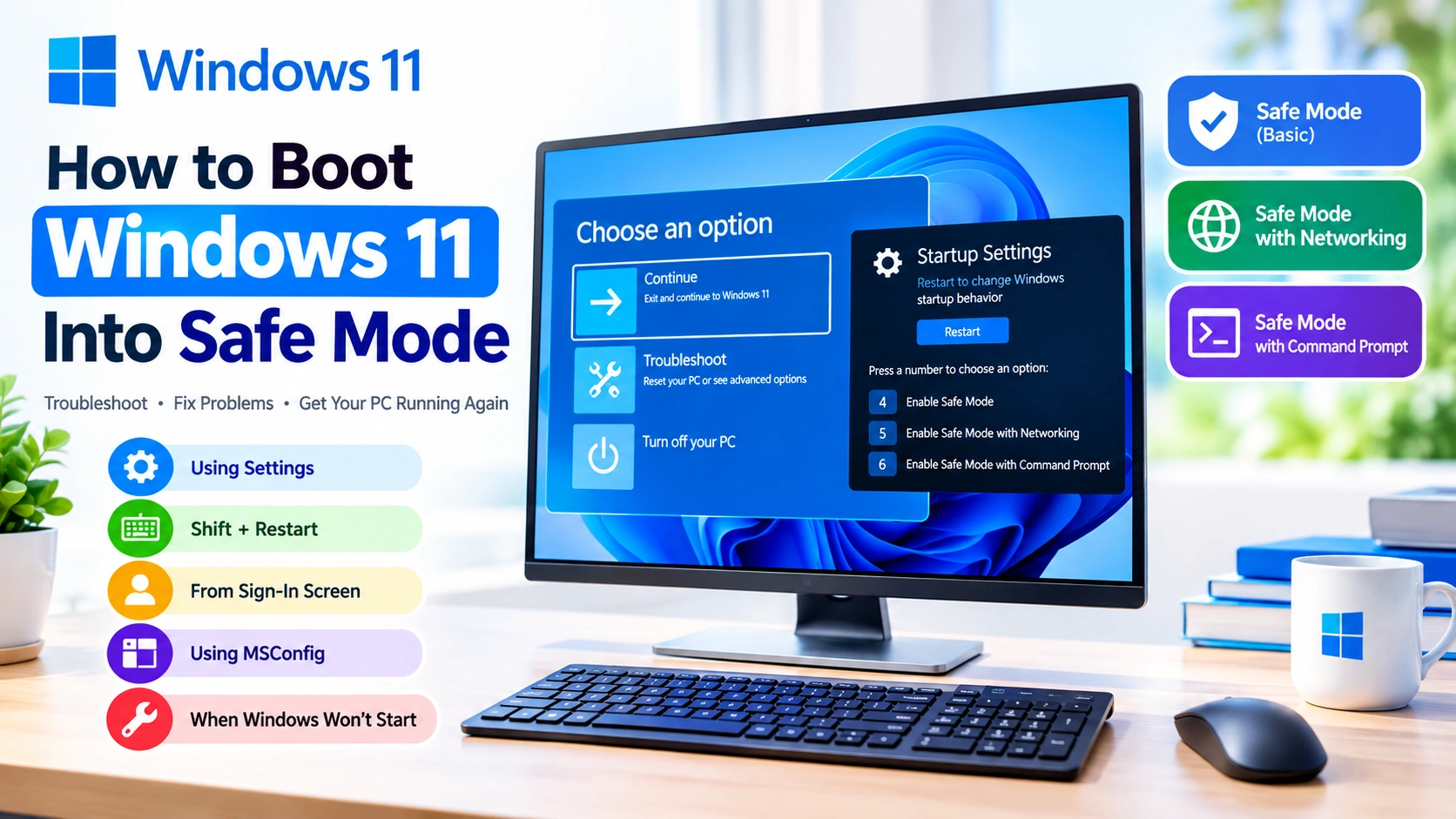
Windows 11 Safe Mode is a useful troubleshooting environment that starts your PC with only essential drivers, services, and system components. It can help you identify problems caused by faulty drivers, recently installed software, startup applications, or other system changes.
If your computer is crashing, freezing, showing a blue screen, or refusing to start normally, booting into Safe Mode can make troubleshooting much easier.
In this guide, you’ll learn several reliable ways to boot Windows 11 into Safe Mode, including methods for PCs that still start normally and computers that cannot reach the desktop.
What Is Safe Mode in Windows 11?
Safe Mode is a diagnostic startup option that loads Windows with a limited set of files and drivers. Because many third-party components are not loaded, it can help determine whether a problem is caused by Windows itself or by additional software or hardware drivers.
Microsoft provides several Safe Mode options:
- Safe Mode — Starts Windows with basic drivers and services.
- Safe Mode with Networking — Adds the network drivers and services required for internet and network access.
- Safe Mode with Command Prompt — Starts Safe Mode with Command Prompt instead of the normal Windows interface.
If a problem disappears while using Safe Mode, it can indicate that a normal startup driver, service, application, or configuration is responsible.
When Should You Use Windows 11 Safe Mode?
Safe Mode can be particularly helpful when troubleshooting:
- Frequent Windows crashes
- Blue screen errors
- Black screen problems
- Driver-related issues
- Programs that prevent Windows from starting
- Malware or suspicious software
- Startup application conflicts
- Display driver problems
- System freezes
- Problems that began after installing software or drivers
- Certain Windows update problems
Safe Mode should generally be viewed as a troubleshooting environment rather than a permanent way to use Windows.
Method 1: Enter Safe Mode From Windows Settings
If you can still access the Windows 11 desktop, using Settings is one of the easiest methods.
Step 1: Open Recovery Settings
Open Settings and go to:
System > Recovery
Step 2: Open Advanced Startup
Under Recovery options, find Advanced startup and select Restart now.
Windows will restart and open the Windows Recovery Environment (WinRE). Microsoft identifies WinRE as a built-in collection of tools for troubleshooting and repairing Windows startup and system problems.
Step 3: Open Startup Settings
After the computer restarts, select:
Troubleshoot > Advanced options > Startup Settings > Restart
Step 4: Select Safe Mode
After another restart, Windows displays a list of startup options.
Choose the option you need:
- Press 4 or F4 for Safe Mode
- Press 5 or F5 for Safe Mode with Networking
- Press 6 or F6 for Safe Mode with Command Prompt
Microsoft documents these options as part of Windows 11 Startup Settings.
Method 2: Use Shift + Restart
Another quick way to access Safe Mode is through the Windows power menu.
From the Desktop
- Open the Start menu.
- Select the Power button.
- Hold down the Shift key.
- While holding Shift, select Restart.
- Wait for the Choose an option screen.
- Select Troubleshoot.
- Choose Advanced options.
- Select Startup Settings.
- Click Restart.
- Press 4, 5, or 6 depending on the Safe Mode option you want.
You can also use this method from the Windows sign-in screen. Microsoft specifically recommends holding Shift while selecting Restart to access the recovery options.
Method 3: Boot Windows 11 Into Safe Mode From the Sign-In Screen
If Windows starts but you cannot successfully sign in, you can still access Safe Mode.
Follow these steps:
- At the Windows 11 sign-in screen, select the Power icon.
- Hold Shift on your keyboard.
- Select Restart while continuing to hold Shift.
- When Windows displays Choose an option, select Troubleshoot.
- Select Advanced options.
- Choose Startup Settings.
- Select Restart.
- Press 4 or F4 for Safe Mode.
- Press 5 or F5 for Safe Mode with Networking.
- Press 6 or F6 for Safe Mode with Command Prompt.
One important detail is that Windows Safe Mode does not provide the normal PIN or biometric sign-in options. You may need to use your account password instead.
Method 4: Use System Configuration (MSConfig)
Windows 11 also includes the System Configuration utility, commonly called MSConfig.
This method can configure Windows to start in Safe Mode on the next boot.
Step 1: Open System Configuration
Press:
Windows + R
Type:
msconfig
Then press Enter.
Step 2: Open the Boot Tab
In the System Configuration window:
- Select the Boot tab.
- Select your Windows installation if necessary.
- Under Boot options, enable Safe boot.
- Choose the Safe Mode configuration you need.
- Select Apply and then OK.
- Restart your PC.
Important Warning About MSConfig
Be careful when changing advanced boot settings. Incorrect configuration can affect how Windows starts.
Once troubleshooting is finished, return to msconfig > Boot and clear the Safe boot option if Windows continues starting in Safe Mode.
Microsoft recommends clearing the Safe boot checkbox when a computer remains stuck booting into Safe Mode.
Method 5: Enter Safe Mode When Windows Won’t Start
If Windows 11 cannot reach the desktop, you can use the Windows Recovery Environment.
Windows can automatically enter WinRE after repeated startup failures. Microsoft also documents a method for forcing Automatic Repair by interrupting the normal startup process twice.
Try Automatic Repair
- Turn on your computer.
- When the Windows or manufacturer’s logo appears, hold the power button until the PC shuts down.
- Turn the computer on again.
- Repeat the forced shutdown process once more.
- Start the computer a third time.
- Windows should enter Automatic Repair.
- Select Advanced options.
- Choose Troubleshoot > Advanced options > Startup Settings.
- Select Restart.
- Press 4, 5, or 6 to enter the appropriate Safe Mode option.
Use This Method Carefully
Repeatedly forcing the computer to shut down should not be your first troubleshooting choice. If you can access Windows normally, use Settings or the Shift + Restart method instead.
How to Choose the Right Safe Mode Option
Not every troubleshooting situation requires the same Safe Mode configuration.
Safe Mode
Choose standard Safe Mode when you need to troubleshoot:
- Drivers
- Startup software
- Windows configuration
- System crashes
- Display problems
- Recently installed applications
It provides the most limited environment and is usually the best place to start.
Safe Mode With Networking
Choose Safe Mode with Networking when you need network access while troubleshooting.
This can be useful when you need to:
- Download a driver
- Access a network resource
- Download a troubleshooting utility
- Perform certain online troubleshooting steps
Keep in mind that Safe Mode with Networking loads additional network-related drivers and services.
Safe Mode With Command Prompt
This option is intended for more advanced troubleshooting. Instead of the standard Windows interface, Windows starts with Command Prompt.
It can be useful for administrators and experienced users who need to run command-line diagnostic or repair tools.
What Can You Do in Safe Mode?
Once Windows 11 starts in Safe Mode, look for changes that may explain the original problem.
For example, you can:
Remove Recently Installed Software
If a problem started immediately after installing an application, uninstalling it from Safe Mode may resolve the issue.
Roll Back or Remove Problematic Drivers
A recently updated graphics, network, audio, or storage driver can sometimes cause system instability.
Device Manager can help you inspect installed hardware drivers and, where appropriate, uninstall or roll back a problematic driver.
Disable Startup Applications
If Windows works correctly in Safe Mode but crashes during normal startup, a startup application may be contributing to the problem.
You can inspect startup applications through Task Manager and disable unnecessary entries.
Scan for Malware
If suspicious software is causing system problems, Safe Mode can provide a more limited environment for investigation.
For serious malware infections, however, consider using Microsoft’s security and recovery tools rather than relying exclusively on Safe Mode.
Troubleshoot Blue Screen Errors
If Windows repeatedly displays a blue screen, Safe Mode can help determine whether a third-party driver or application is involved.
Microsoft recommends Safe Mode as one of the basic troubleshooting steps for recurring Windows 11 stop-code errors.
How to Exit Safe Mode in Windows 11
In many cases, you can simply restart your computer.
Select:
Start > Power > Restart
Windows should normally return to its regular startup mode.
If the computer keeps booting into Safe Mode:
- Press Windows + R.
- Type
msconfig. - Press Enter.
- Select the Boot tab.
- Under Boot options, clear Safe boot.
- Select Apply.
- Select OK.
- Restart the computer.
Microsoft provides the same general procedure for systems that continue booting into Safe Mode.
What If Safe Mode Doesn’t Solve the Problem?
If the problem continues even in Safe Mode, the cause may be deeper than a normal startup application or third-party driver.
Depending on the symptoms, consider additional Windows recovery options such as:
- Startup Repair
- System Restore
- Uninstalling a recent Windows update
- Windows Recovery Environment troubleshooting
- Repairing damaged system files
- Resetting Windows
Windows RE provides several recovery tools specifically designed to diagnose and repair startup problems.
If the issue began immediately after a Windows update, for example, uninstalling the problematic update from Windows Recovery Environment may be an appropriate next step.
Safe Mode vs. Clean Boot
Safe Mode and a clean boot are related but different troubleshooting approaches.
Safe Mode starts Windows with a limited set of drivers and services.
A clean boot, on the other hand, starts Windows normally while disabling nonessential startup programs and third-party services. This gives you more control when identifying software conflicts.
If Windows works correctly in Safe Mode but you need to determine exactly which third-party service or startup program causes the problem, a clean boot may be the next troubleshooting step.
Frequently Asked Questions
Does Safe Mode delete files?
No. Simply entering Safe Mode does not delete your personal files. However, you should still maintain current backups before performing major troubleshooting or recovery operations.
Can I use the internet in Safe Mode?
Yes. Select Safe Mode with Networking instead of standard Safe Mode. This loads the network drivers and services required for network connectivity.
Why can’t I use my PIN in Safe Mode?
Windows may require your account password instead of a PIN or biometric authentication when signing in through Safe Mode.
What if Windows keeps entering Safe Mode?
Open msconfig, go to the Boot tab, clear Safe boot, apply the change, and restart the computer.
Can Safe Mode fix Windows permanently?
Safe Mode itself does not automatically repair Windows. Its primary purpose is diagnosis and troubleshooting. You can use it to identify problematic software, drivers, or settings and then take corrective action.
Final Thoughts
Knowing how to boot Windows 11 into Safe Mode can save time when your PC starts behaving unexpectedly. The easiest approach is usually Settings > System > Recovery > Advanced startup, followed by Troubleshoot > Advanced options > Startup Settings.
If Windows cannot reach the desktop, the Shift + Restart method, Windows Recovery Environment, or Automatic Repair can provide another route into Safe Mode.
Once inside Safe Mode, focus on recent changes such as new drivers, applications, updates, and startup programs. If the problem disappears in Safe Mode, that can provide an important clue about what is causing the issue.
For persistent startup problems, Windows Recovery Environment provides additional repair and recovery tools beyond Safe Mode.