

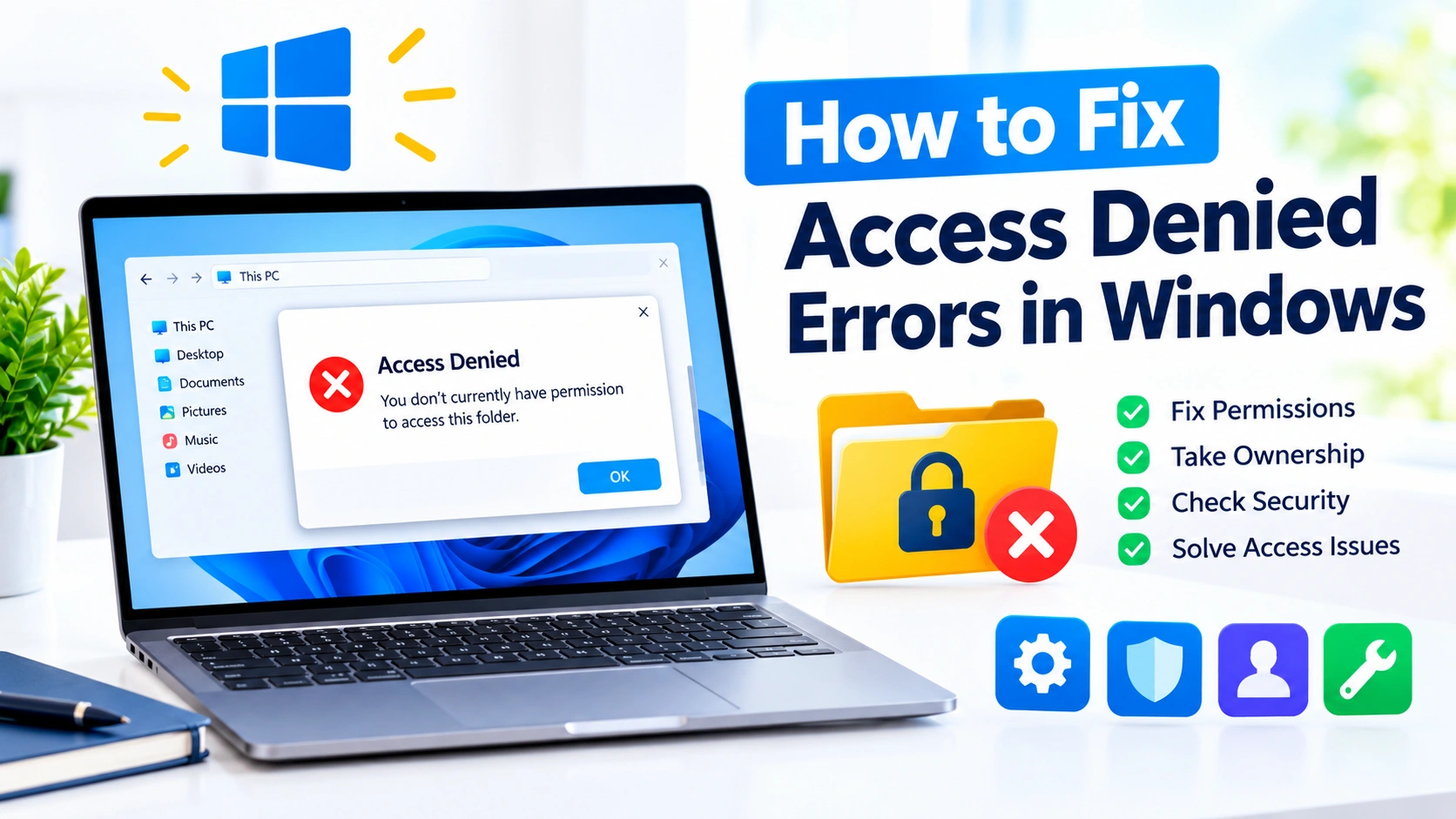
Getting an “Access Denied” error in Windows can be frustrating, especially when you are trying to open a folder, modify a file, install software, or change system settings. In many cases, Windows blocks the action because your account does not have sufficient permissions or because another security feature is preventing access.
Fortunately, you can usually resolve the problem without reinstalling Windows. This guide explains practical ways to fix Access Denied errors in Windows, starting with simple solutions and progressing to more advanced permission repairs.
What Does “Access Denied” Mean in Windows?
An Access Denied error means Windows has prevented your current account or application from performing an action.
You may encounter messages such as:
- “Access Denied”
- “You don’t currently have permission to access this folder.”
- “You need permission to perform this action.”
- “Access is denied.”
- “Destination Folder Access Denied”
- “Unable to access the specified device, path, or file.”
The problem can occur with files, folders, drives, applications, registry entries, or system locations.
Why Does Windows Show an Access Denied Error?
Several issues can cause access restrictions in Windows:
- Your user account does not have sufficient permissions.
- You are not the owner of the file or folder.
- Windows has restricted access to a protected system location.
- File or folder permissions have become incorrect.
- An application is currently using the file.
- Windows Defender or another security application is blocking access.
- The file is encrypted.
- The drive has file-system errors.
- Your account is not an administrator.
- Network or shared-folder permissions are preventing access.
Identifying the cause makes it easier to choose the right solution.
1. Check Whether Your Account Is an Administrator
Before changing permissions, check whether your Windows account has administrator privileges.
How to check
- Press Windows + I to open Settings.
- Select Accounts.
- Click Your info.
- Look for information indicating whether the account is an administrator.
If you are using a standard account, some operations may require an administrator account.
If the computer belongs to an organization, you may need the system administrator to grant the required access.
Learn how to check whether your Windows account is an administrator using Settings, Control Panel, Command Prompt, and Computer Management.
2. Restart Windows
A simple restart can sometimes fix temporary permission problems.
An application may have locked a file, or Windows may have encountered a temporary problem with a service or security component.
Save your work and restart the computer. After Windows loads again, try accessing the file or folder.
If the error continues, move on to the permission-related solutions below.
3. Run the Application as Administrator
If Access Denied appears when launching a program or performing an administrative operation, try running the application with elevated privileges.
Steps
- Find the application’s shortcut or executable file.
- Right-click it.
- Select Run as administrator.
- Click Yes when User Account Control appears.
This gives the application an elevated security token for that session.
However, running every application as administrator is not recommended. Only use elevation when the application genuinely requires it.
Learn how to install software without administrator rights on Windows using safe, practical methods while understanding permission and security limitations.
4. Take Ownership of the File or Folder
If Windows says you do not have permission to access a folder, ownership may belong to another account or system identity.
You can take ownership through File Explorer.
Steps
- Right-click the affected file or folder.
- Select Properties.
- Open the Security tab.
- Click Advanced.
- Look at the Owner field.
- Click Change.
- Enter your Windows account name.
- Select Check Names.
- Click OK.
- Apply the changes.
After ownership is changed, you may still need to grant your account appropriate permissions.
Important
Do not take ownership of protected Windows system files unless you have a specific reason. Changing ownership of system components can cause security or stability problems.
Learn how to take ownership of files or folders in Windows and fix Access Denied errors using File Explorer, Command Prompt, and PowerShell.
5. Give Your Account the Required Permissions
Taking ownership does not automatically give your account full control. You may also need to modify the permissions.
Steps
- Right-click the affected folder.
- Choose Properties.
- Select Security.
- Click Edit.
- Select your Windows account.
- Enable the appropriate permissions.
- Click Apply.
- Select OK.
For personal files, Modify or Full control may be appropriate depending on what you need to do.
Avoid granting Everyone – Full control simply to make the error disappear. Broad permissions can unnecessarily reduce Windows security.
6. Check the File’s Security Properties
Windows can block certain downloaded files because they originated from another computer or the internet.
If a particular file refuses to open, check whether Windows has added an additional security restriction.
Try this:
- Right-click the file.
- Select Properties.
- Stay on the General tab.
- Look for an Unblock option.
- If it is available and you trust the file, select it.
- Click Apply.
Only unblock files from sources you trust.
7. Disable Read-Only When Appropriate
A read-only attribute can prevent certain applications from modifying files.
Steps
- Right-click the file or folder.
- Select Properties.
- Under the General tab, check Read-only.
- Clear the option if it is enabled.
- Click Apply.
Keep in mind that removing the read-only attribute will not fix NTFS permission problems. It is only relevant when the attribute itself is causing the restriction.
8. Check Windows Security or Antivirus Blocking
Security software can sometimes prevent an application from modifying files.
Windows Security includes several protection mechanisms that can interfere with suspicious or unauthorized applications.
If a trusted application suddenly cannot write to a folder, check:
Settings → Privacy & security → Windows Security
Then review areas such as:
- Virus & threat protection
- Ransomware protection
- App & browser control
- Device security
If Controlled Folder Access is blocking a trusted application, you can allow the application through the appropriate Windows Security settings rather than disabling your entire antivirus protection.
Avoid permanently turning off security features just to resolve an Access Denied message.
Learn how to check Windows Security settings, review protection features, and adjust key security options to help keep your Windows PC safe.
9. Check Whether Another Program Is Using the File
Windows may refuse an operation when another application has locked the file.
For example, a document could be open in Microsoft Word, an image could be used by an editor, or a background process could be accessing a database file.
Try the following:
- Close the application using the file.
- Close File Explorer windows displaying the folder.
- Wait a few seconds.
- Try the operation again.
If the file remains locked, restart Windows and try again.
10. Use Command Prompt to Check Permissions
Advanced users can use Command Prompt to inspect and repair permissions.
Open Command Prompt as administrator, then use:
icacls "C:\Path\To\Folder"This displays the access-control entries associated with the specified file or folder.
For example:
icacls "C:\Users\YourName\Documents"You can use icacls to diagnose permission problems before making changes.
Granting permissions
For a personal folder where you specifically need access, an administrator can use an appropriate icacls command.
For example:
icacls "C:\Example" /grant YourUsername:(OI)(CI)MHere, M represents Modify permissions.
Be careful when using permission commands. Applying permissions recursively to system directories can cause unexpected problems.
11. Reset Incorrect File Permissions Carefully
If permissions have become corrupted or incorrectly configured, resetting them may resolve Access Denied errors.
However, resetting permissions across an entire system drive is risky.
Do not blindly use commands that reset permissions on:
C:\
C:\Windows
C:\Program Files
C:\Program Files (x86)
These locations contain security-sensitive files and folders.
If only one personal folder is affected, work specifically on that folder rather than changing permissions throughout Windows.
12. Check the Drive for File-System Errors
Access problems can sometimes be related to drive corruption rather than permissions.
Windows includes a built-in disk-checking utility called CHKDSK.
Open Command Prompt as administrator and run:
chkdsk C: /scanThe /scan option performs an online scan of the NTFS volume.
If Windows reports file-system problems, follow the recommended repair procedure.
Before attempting significant disk repairs, make sure important data is backed up.
13. Check the Drive’s File System
An external drive formatted with NTFS, exFAT, or another file system can behave differently when connected to another Windows computer.
For an NTFS drive, permissions can travel with the file system. A folder created under another Windows installation may therefore produce Access Denied messages.
This is particularly common when:
- Moving an old Windows drive to another PC
- Connecting a previously used internal drive
- Recovering files from another Windows installation
- Accessing another user’s profile folder
Taking ownership and assigning appropriate permissions can resolve the issue, but preserve the original permissions when the data belongs to another user or organization.
14. Check for BitLocker or File Encryption
Encryption can also prevent access to files.
If the drive is protected with BitLocker, make sure the drive is properly unlocked.
For encrypted individual files, Windows may require the original encryption certificate and key.
This is important because taking ownership does not necessarily decrypt an encrypted file.
If an encrypted file belongs to another Windows account, changing NTFS permissions alone may not make its contents readable.
15. Try Safe Mode
If a third-party application or security tool is interfering with access, Safe Mode can help determine whether background software is responsible.
In Safe Mode, Windows starts with a limited set of drivers and services.
If you can access the file in Safe Mode but not during a normal Windows startup, investigate recently installed:
- Antivirus software
- File-management utilities
- Backup programs
- Synchronization applications
- System customization tools
- Security software
This can help isolate the application responsible for the restriction.
16. Check Network and Shared Folder Permissions
Access Denied errors can also occur when accessing files on another computer.
Network access can involve multiple permission layers:
- Share permissions
- NTFS permissions
- User-account permissions
- Network authentication
- Security policies
Even if you have permission at one level, another layer can prevent access.
If you manage the shared computer, check the folder’s:
Properties → Sharing → Advanced Sharing
and:
Properties → Security
Make sure the appropriate account has the required access at both levels.
17. Disconnect and Reconnect an External Drive
If the problem occurs on a USB hard drive or SSD, disconnecting and reconnecting the device may resolve a temporary access problem.
Before removing it:
- Close all files stored on the drive.
- Close applications using the drive.
- Safely eject the device.
- Disconnect it.
- Reconnect it to another USB port.
- Try accessing the files again.
If the drive repeatedly produces errors, back up important files as soon as possible and investigate its health.
18. Create a New Windows User Profile
Sometimes the problem is specific to one Windows user profile.
If files work correctly under another authorized account, the original profile may have damaged permissions or configuration problems.
You can test this by creating another local Windows account and attempting to access the affected resource.
Do not use another account to bypass permissions you are not authorized to access. The goal is to diagnose a problem with your own Windows profile.
19. Install Pending Windows Updates
Microsoft regularly releases Windows updates that fix security, compatibility, and system issues.
To check for updates:
- Press Windows + I.
- Select Windows Update.
- Click Check for updates.
- Install available updates.
- Restart the computer if required.
If the Access Denied problem started immediately after an update, however, investigate the specific change rather than assuming another update will fix it.
20. Restore the System When the Problem Started Recently
If Access Denied errors appeared after installing software, changing system settings, or modifying permissions, System Restore may help on systems where restore points are available.
System Restore can roll certain system configurations back to an earlier state without intentionally removing personal documents.
Before using recovery tools, back up important data and understand what changes the selected recovery option can make.
What If Access Is Denied to the Windows Folder?
Be especially careful when the error involves:
C:\Windowsor other system directories.
Windows deliberately protects these locations from unauthorized modification.
If you only need to read a file, avoid changing ownership or granting Full Control unnecessarily.
If an application requires access to a protected system directory, the safer solution may be to change the application’s configuration or use an appropriate Windows-supported location instead.
What If Access Is Denied to Program Files?
The Program Files directories are also protected by Windows.
Applications generally should not store user-generated data directly inside their installation directories.
If you are developing or configuring an application that needs to save files, consider using a user-writable location such as the user’s Documents or AppData directories instead of weakening Program Files permissions.
Quick Troubleshooting Checklist
When Windows displays an Access Denied error, work through this checklist:
- Restart Windows.
- Confirm that you are using the correct account.
- Check whether the account has administrator privileges.
- Run the affected application as administrator when appropriate.
- Check file and folder permissions.
- Check ownership.
- Look for an Unblock option.
- Check whether another application is using the file.
- Review Windows Security.
- Check the drive for file-system errors.
- Verify encryption or BitLocker status.
- Check network and sharing permissions.
- Test with another authorized Windows account.
- Install relevant Windows updates.
- Use System Restore if the issue started after a recent configuration change.
Final Thoughts
An Access Denied error in Windows does not necessarily mean that a file or folder is damaged. In many situations, Windows is simply enforcing permissions designed to protect your files and system.
Start with simple troubleshooting, such as restarting Windows and checking the account and application involved. If the problem concerns a personal folder, review its ownership and NTFS permissions. For system directories, avoid making broad permission changes unless you understand the consequences.
The safest approach is to grant only the permissions you actually need rather than disabling Windows security features or giving unrestricted access to protected locations.