

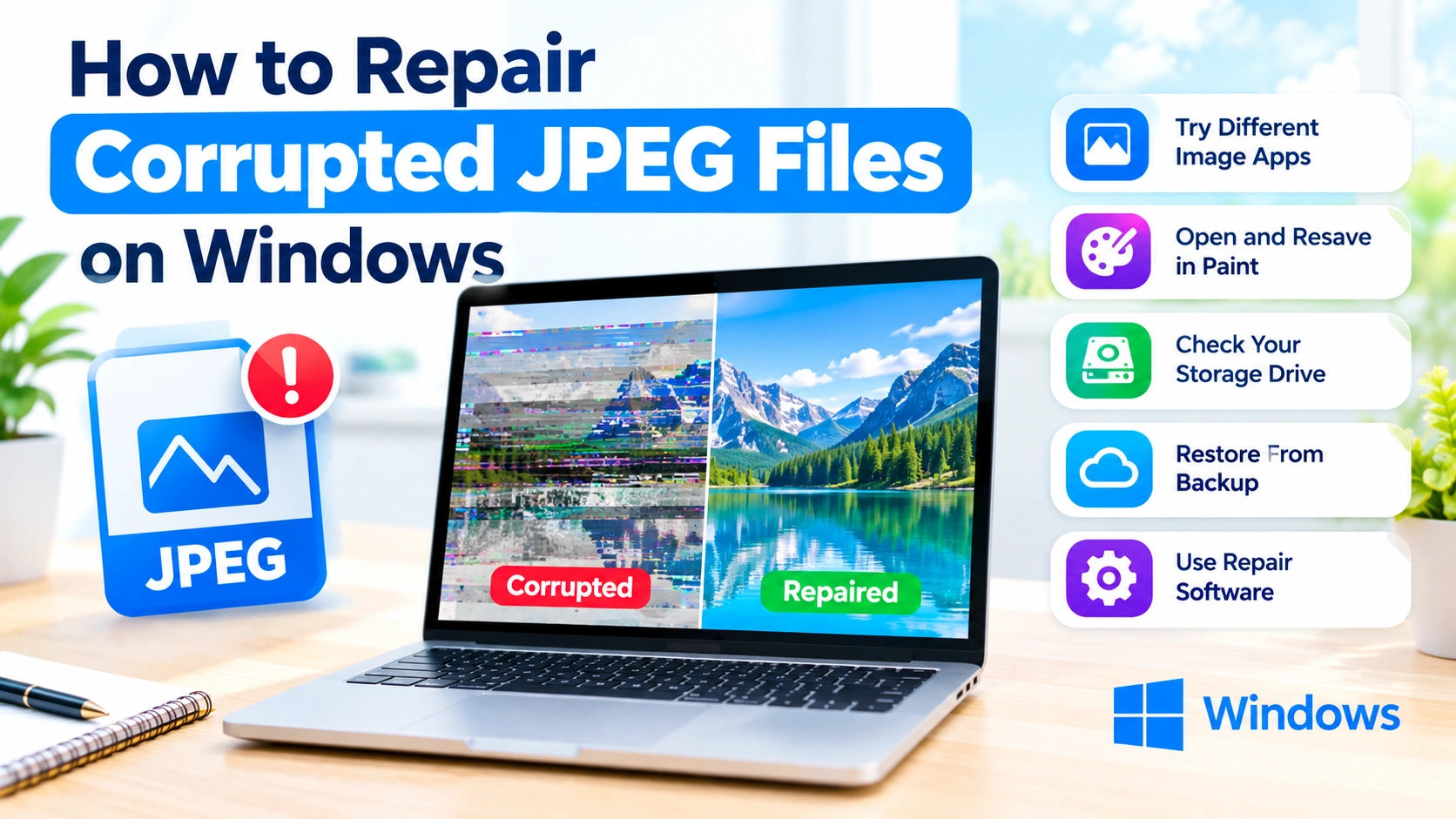
JPEG images are among the most widely used image formats on Windows, but they can sometimes become corrupted and refuse to open properly. You may see errors such as “Invalid image,” “Windows Photo Viewer can’t open this picture,” or simply get a blank or partially displayed image.
Corruption can happen because of interrupted file transfers, damaged storage devices, incomplete downloads, software crashes, malware, or unexpected system shutdowns. Fortunately, several methods can help repair or recover a corrupted JPEG file.
This guide explains how to repair corrupted JPEG files on Windows using practical methods, from simple fixes to more advanced recovery techniques.
What Causes JPEG Files to Become Corrupted?
Before repairing a damaged image, it helps to understand what may have caused the problem.
Common causes include:
- Interrupted file transfers
- Sudden Windows shutdowns
- Failing HDDs or SSDs
- Bad sectors on a storage drive
- Malware infections
- Incomplete downloads
- File-system errors
- Crashes while editing or saving an image
- Damaged USB flash drives or memory cards
- Incorrect file recovery procedures
- Cloud synchronization conflicts
If multiple JPEG files suddenly become unreadable, the problem may involve the storage device rather than the individual images.
Signs That a JPEG File Is Corrupted
A corrupted JPEG may behave differently depending on the extent of the damage.
Typical symptoms include:
- The image will not open.
- Windows displays an image-format error.
- The image appears partially gray or distorted.
- Only the top portion of the picture is visible.
- The file opens but displays incorrect colors.
- An image editor reports that the JPEG header is damaged.
- The file size appears unusually small.
- The image opens in one application but not another.
If the JPEG contains important data, avoid repeatedly editing or overwriting the original file.
How to Repair Corrupted JPEG Files on Windows
Try the following methods in order. Start with the least invasive solution before attempting more advanced recovery.
1. Make a Copy of the Corrupted JPEG
The first step is to protect the original file.
Right-click the JPEG and select Copy, then paste it into another folder. Perform repair attempts on the duplicate rather than the original.
If the file is stored on an external drive or memory card, consider copying it to your Windows PC first.
This is especially important when the storage device shows signs of failure.
2. Try Opening the JPEG With Another Application
Sometimes the JPEG itself is not severely damaged. The problem may simply be that the current image viewer cannot decode it correctly.
Try opening the image with applications such as:
- Microsoft Photos
- Paint
- Paint.NET
- GIMP
- IrfanView
- A web browser
You can also drag the JPEG into Microsoft Edge or another browser.
If another application successfully opens the picture, immediately use Save As or export it as a new JPEG.
This can rebuild the image file and eliminate minor structural problems.
3. Rename the JPEG File
A damaged filename or incorrect extension can sometimes prevent Windows from recognizing the image correctly.
Right-click the file and select Rename.
Make sure the filename ends with:
.jpgor:
.jpegFor example:
holiday-photo.jpegHowever, changing the extension does not repair actual JPEG corruption. This method is useful only when the file has an incorrect or missing extension.
4. Open and Resave the Image in Paint
Microsoft Paint can sometimes recover JPEGs that Windows Photos cannot display correctly.
Right-click the JPEG and choose Open with > Paint.
If Paint successfully displays the image:
- Click File.
- Select Save as.
- Choose JPEG picture.
- Give the repaired image a new filename.
- Save it to a different folder.
The newly created file may contain a corrected JPEG structure.
If Paint cannot open the image, move on to the next method.
5. Try a Web Browser
Modern browsers can sometimes decode image files differently from Windows image viewers.
Open Chrome, Edge, or Firefox and drag the JPEG into a browser window.
If the picture appears correctly, right-click it and save a new copy if the browser provides that option.
You can then test the new JPEG with Windows Photos.
This technique is particularly useful for JPEGs with minor metadata or structural problems.
6. Check the File Size
Right-click the corrupted JPEG and select Properties.
Look at the Size value.
If the image was originally several megabytes but the damaged copy is only a few kilobytes, the file may have lost a significant amount of its data.
For example, if an original camera photograph was approximately 8 MB but the corrupted file is only 20 KB, a simple image-viewer problem is unlikely.
In that situation, file recovery may be more appropriate than conventional JPEG repair.
7. Check the Storage Drive for Errors
If several JPEG files became corrupted at the same time, check the storage device.
Windows includes a built-in error-checking feature.
Open File Explorer, right-click the affected drive, and select:
Properties > Tools > Error checking > Check
Follow the instructions provided by Windows.
You can also use Windows’ built-in command-line tools for file-system troubleshooting.
Open Terminal or Command Prompt as administrator and run:
chkdsk X: /scanReplace X: with the appropriate drive letter.
For example:
chkdsk D: /scanThis checks the file system for problems without immediately performing the more aggressive repair operations.
If the drive is showing signs of physical failure, avoid repeatedly running repair operations. Recover important files first whenever possible.
8. Restore the JPEG From a Backup
If the damaged image exists somewhere else, restoring the backup is usually safer than trying to reconstruct a severely corrupted JPEG.
Check locations such as:
- External backup drives
- OneDrive
- Google Drive
- Dropbox
- Windows File History
- NAS devices
- Another computer
- Camera or phone storage
Look for an older version of the same photograph.
If a backup exists, copy it to a separate location before replacing the damaged file.
9. Check Previous Versions in Windows
Windows may have a previous version available if File History, backup software, or another supported backup mechanism was configured.
Right-click the folder containing the damaged JPEG and look for:
Properties > Previous Versions
If an older version is available, select it and restore or copy the required file.
The availability of this option depends on your Windows configuration and whether previous versions or backups were enabled.
10. Use Image Repair Software
When basic Windows tools cannot open the JPEG, specialized image-repair software may be able to reconstruct damaged JPEG structures.
These applications typically attempt to analyze elements such as:
- JPEG headers
- Image markers
- Quantization tables
- Huffman tables
- Image data
- Metadata
Some repair tools work particularly well when you have a healthy JPEG from the same camera or device.
For example, a reference photo taken with the same camera can sometimes provide information needed to reconstruct a damaged JPEG.
Before using third-party software, create a backup of the corrupted file and avoid installing recovery software onto the same failing drive containing your images.
11. Try a JPEG Repair Tool With a Reference Image
Some advanced JPEG repair applications can use a healthy image as a reference.
For example, if you have:
photo001.jpgthat is corrupted and:
photo002.jpgthat was taken with the same camera and settings, the healthy file may help the repair software identify the expected JPEG structure.
The reference image should ideally come from the same camera or device.
Do not overwrite the original damaged JPEG during the repair process.
12. Recover the JPEG Instead of Repairing It
If the JPEG has been deleted, partially overwritten, or badly damaged because of storage problems, a file-recovery approach may be more appropriate.
Recovery software scans the storage device for remaining file data and attempts to reconstruct files from what is still available.
This is different from JPEG repair:
JPEG repair: attempts to fix a damaged existing file.
File recovery: attempts to recover file data that is missing or deleted.
If the JPEG was accidentally deleted, stop using the affected drive as soon as possible. New files written to the drive can overwrite the deleted image data.
How to Repair a JPEG That Shows Half an Image
A particularly frustrating problem occurs when a JPEG opens but only part of the photograph is visible.
For example, you might see the upper section of the picture while the bottom portion appears gray or distorted.
This often indicates that some of the JPEG’s image data is damaged or missing.
Try these steps:
- Make a copy of the original JPEG.
- Open the copy with another image application.
- Try Paint or a browser.
- Check whether the complete image appears in another application.
- Use specialized JPEG repair software if necessary.
- If the file came from a damaged storage device, investigate the drive before continuing to use it.
If important image data has been physically lost, no software can guarantee reconstruction of information that is no longer present.
How to Repair JPEG Files From an SD Card
JPEG corruption is common when photographs are transferred from cameras or SD cards.
If images on an SD card suddenly become unreadable:
- Stop taking new photographs on the card.
- Do not format the card.
- Do not copy large amounts of data onto it.
- Connect the card to Windows using a reliable card reader.
- Copy any readable images to another drive.
- Attempt recovery of the damaged images.
- Consider creating a complete image or backup of the card before advanced recovery.
Avoid repeatedly writing data to a potentially damaged memory card.
What Not to Do When a JPEG Is Corrupted
Some actions can make recovery more difficult.
Avoid:
- Saving the corrupted file repeatedly.
- Overwriting the original JPEG.
- Formatting the affected storage device.
- Continuing to use a failing SD card.
- Installing recovery software onto the damaged drive.
- Running unnecessary disk-cleaning applications.
- Renaming the file repeatedly and expecting the corruption to disappear.
- Downloading questionable “repair” utilities from unknown websites.
The more important the photograph is, the more important it is to preserve the original data before experimenting.
How to Prevent JPEG Corruption on Windows
Preventing corruption is easier than repairing a badly damaged photograph.
Keep Multiple Backups
Use the 3-2-1 backup approach:
- Keep three copies of important data.
- Store them on at least two different types of storage.
- Keep at least one copy in a separate location.
Cloud storage can provide another layer of protection for important photographs.
Safely Remove External Storage
Before disconnecting an external drive or memory card, make sure Windows has finished transferring data.
Unexpected removal during a write operation can result in incomplete files.
Monitor Aging Storage Devices
An aging hard drive, SSD, USB flash drive, or memory card can cause repeated file corruption.
If you notice increasing numbers of unreadable files, slow transfers, or unusual drive behavior, back up important data and investigate the storage device.
Keep Windows and Security Software Updated
Windows updates and security software can help maintain system stability and protect files against certain types of malware.
However, updates cannot protect against every form of storage failure, which is why backups remain essential.
Frequently Asked Questions
Can Windows repair a corrupted JPEG automatically?
Windows provides tools for checking storage and file-system problems, but it does not have a universal built-in JPEG repair function. For severely damaged JPEG files, specialized recovery or repair software may be required.
Can changing JPG to JPEG fix a corrupted image?
No. .jpg and .jpeg are both commonly used extensions for JPEG images. Changing the extension does not repair damaged image data.
Can a corrupted JPEG be recovered?
Sometimes. The possibility depends on what part of the file is damaged and whether the underlying image data is still available.
Why does a JPEG open as a gray image?
A gray or partially displayed image can indicate damaged JPEG image data. Try another image application first, then consider a dedicated JPEG repair or recovery tool.
Can CHKDSK repair a corrupted JPEG?
CHKDSK is designed primarily to check and repair file-system problems on a storage volume. It does not specifically repair JPEG image structures. If the corruption is caused by file-system problems, resolving those problems may help prevent further damage, but it does not guarantee that an already-corrupted JPEG can be reconstructed.
Conclusion
Learning how to repair corrupted JPEG files on Windows starts with protecting the original file. Try opening the image with different applications, resaving it through Paint, checking the storage drive, and restoring a backup when available.
For severely damaged images, specialized JPEG repair software or file-recovery tools may provide additional options. If the corruption is caused by a failing HDD, SSD, USB drive, or SD card, focus on protecting and recovering your data before continuing to use the device.
Most importantly, keep multiple backups of valuable photographs. A reliable backup strategy can turn a serious JPEG corruption problem into a simple file restoration task.