

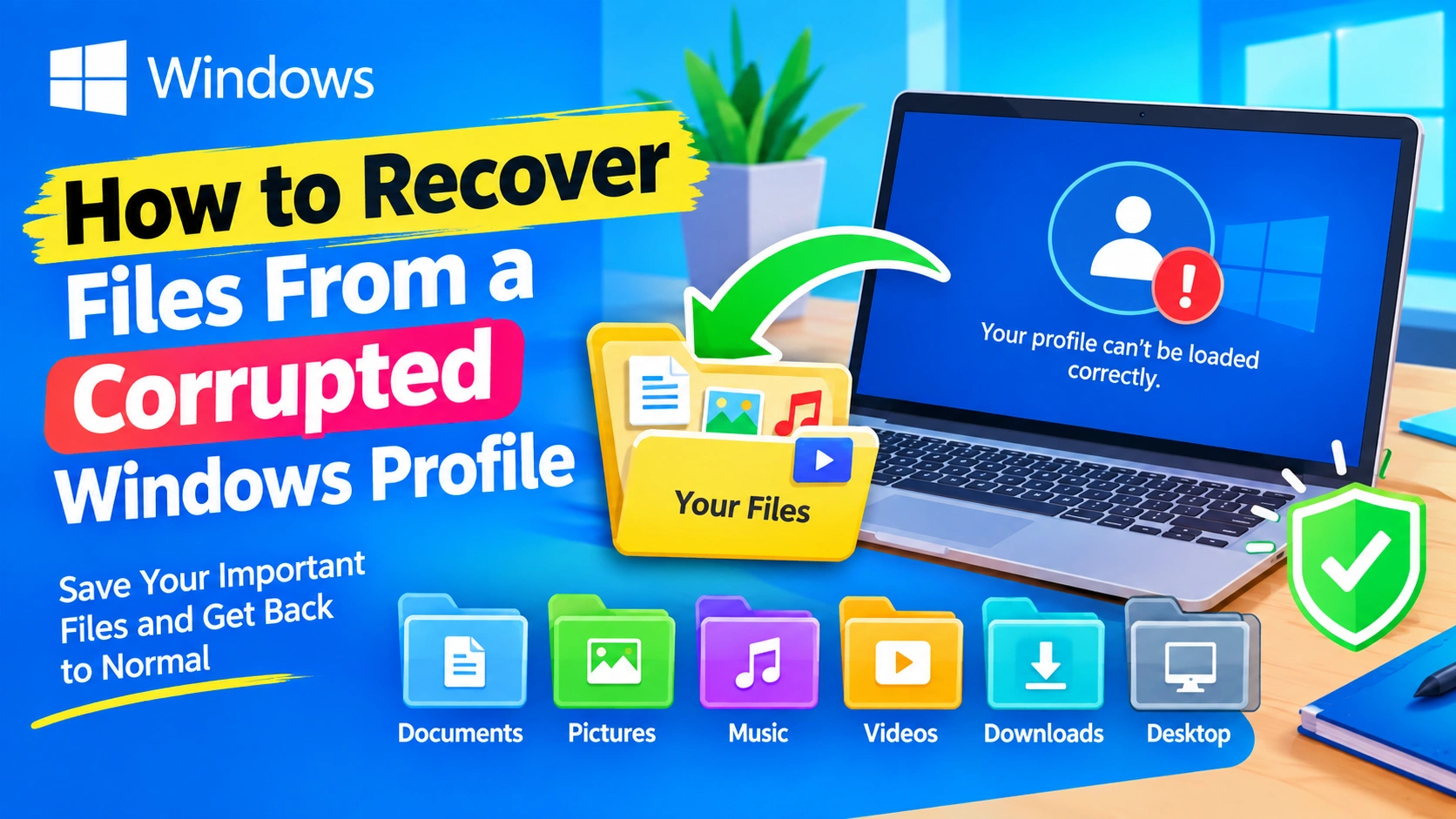
A corrupted Windows user profile can be frustrating, especially when important documents, pictures, downloads, or desktop files appear to be missing. In many cases, however, the files are still stored safely inside the original profile folder.
Windows may create a temporary profile, display an error when you sign in, or load a fresh desktop with none of your usual settings. This does not necessarily mean your personal files have been deleted.
This guide explains how to recover files from a corrupted Windows profile using File Explorer, another administrator account, Windows Safe Mode, external storage, and other recovery methods.
What Is a Corrupted Windows Profile?
A Windows user profile contains your personal files, application settings, desktop configuration, and other account-specific data. The profile is normally stored under:
C:\Users\YourUsername
A profile can become corrupted after a failed Windows update, unexpected shutdown, disk problems, damaged system files, malware, software conflicts, or other Windows errors.
Common symptoms include:
- Windows signs you into a temporary profile.
- Your desktop looks completely different.
- Personal files appear to be missing.
- Windows displays a profile-service error.
- Applications lose their previous settings.
- Desktop shortcuts disappear.
- Documents or pictures cannot be found through normal folders.
- Windows repeatedly fails to load your account.
- You can sign in but cannot access your old profile normally.
Before attempting major repairs, do not delete the old profile folder. Your files may still be recoverable from it.
Where Windows Stores Your Personal Files
Most personal files are located in the following folders:
C:\Users\YourUsername\Desktop
C:\Users\YourUsername\Documents
C:\Users\YourUsername\Downloads
C:\Users\YourUsername\Pictures
C:\Users\YourUsername\Videos
C:\Users\YourUsername\Music
There may also be important files in:
C:\Users\YourUsername\OneDrive
C:\Users\YourUsername\Favorites
C:\Users\YourUsername\AppData
The AppData folder is hidden by default and contains application-specific information.
If your goal is simply to recover personal documents, prioritize Desktop, Documents, Downloads, Pictures, Videos, and Music before dealing with application settings.
Method 1: Check the Original Profile Folder
The easiest recovery method is to access the old profile directly.
Step 1: Open File Explorer
Press:
Windows + E
Then select This PC.
Step 2: Open the Windows drive
Usually this is:
C:
Open:
C:\Users
Step 3: Look for the old username
You may see folders such as:
Admin
Public
User
User.DESKTOP-123456
TEMP
Look for the folder associated with your original Windows account.
Step 4: Open the profile folder
Check:
Desktop
Documents
Downloads
Pictures
Videos
Music
If your files are there, copy them to another safe location.
For example:
D:\Recovered Files
or an external USB drive.
Do not move the files yet. Copy them first.
Method 2: Recover Files Using Another Administrator Account
If Windows will not properly load your original account, another administrator account can often access the old profile.
You can create a temporary local administrator account if you can still access Windows with an account that has administrative privileges.
Open Settings → Accounts → Other users.
Select the option to add another user, then create a local account.
After creating it, change the account type to Administrator.
Sign out and log into the new administrator account.
Then navigate to:
C:\Users\OldUsername
You should be able to copy your personal files from the damaged profile.
If Windows Displays an Access Denied Message
You may encounter a permissions error when opening the old profile.
This usually happens because Windows associates the files with the security identifier of the old account.
Right-click the affected folder and select:
Properties → Security → Advanced
Check the current owner.
If necessary, use the Change option next to the owner and assign ownership to your current administrator account.
After ownership is changed, grant your administrator account permission to access the folder.
Be careful when modifying permissions on the entire Windows drive. Limit changes to the old user profile whenever possible.
Method 3: Show Hidden Files
Some important files may be hidden.
Open File Explorer and select:
View → Show → Hidden items
You can then inspect:
C:\Users\OldUsername\AppData
The AppData directory contains three important folders:
AppData\Local
AppData\LocalLow
AppData\Roaming
These folders may contain application settings, browser profiles, email data, saved configurations, and other user-specific information.
However, don’t copy the entire AppData folder blindly. Some files are temporary or locked by Windows.
Method 4: Recover Files From a Temporary Windows Profile
Windows sometimes signs users into a temporary profile when the normal profile cannot be loaded.
You may notice:
- A completely new desktop.
- Missing personal settings.
- Missing shortcuts.
- A message saying you have been signed in with a temporary profile.
- Files that normally appear on the desktop are absent.
In this situation, do not assume the files are gone.
Open:
C:\Users
Find the original profile folder and check its contents.
For example:
C:\Users\John
Your temporary profile may have a different location or username.
Copy your important files from the original profile to an external drive or another user account.
Important Warning
Avoid saving new files inside the temporary profile.
Windows can remove a temporary profile when you sign out or restart, depending on the circumstances.
Recover your important data first.
Method 5: Use Safe Mode
If normal Windows startup prevents you from accessing the old profile, Safe Mode may help.
Step 1: Open Windows Recovery Environment
From the Windows sign-in screen, hold Shift and select:
Power → Restart
Step 2: Open Startup Settings
Select:
Troubleshoot → Advanced options → Startup Settings → Restart
Step 3: Start Safe Mode
Choose the Safe Mode option.
Once Windows starts, open:
C:\Users
Check whether your original profile and files are accessible.
Safe Mode loads fewer drivers and startup programs, which can make it easier to troubleshoot profile-related problems.
Method 6: Copy Files From the Command Prompt
If File Explorer is not working correctly, you can use Command Prompt to copy your files.
Open an elevated Command Prompt and identify the old profile.
For example:
dir C:\Users
Suppose the old profile is:
C:\Users\OldUser
You could copy the Documents folder to another drive with:
robocopy "C:\Users\OldUser\Documents" "D:\Recovered\Documents" /E /COPY:DAT /R:1 /W:1
For the Desktop:
robocopy "C:\Users\OldUser\Desktop" "D:\Recovered\Desktop" /E /COPY:DAT /R:1 /W:1
For Downloads:
robocopy "C:\Users\OldUser\Downloads" "D:\Recovered\Downloads" /E /COPY:DAT /R:1 /W:1
robocopy is useful because it can handle large numbers of files and continue when individual files cannot be copied.
Method 7: Recover Files From OneDrive
If you previously synchronized your Windows folders with OneDrive, some files may already be stored in the cloud.
Check your OneDrive folder:
C:\Users\OldUsername\OneDrive
You can also sign into your Microsoft account from another device and check whether your files are synchronized.
Pay particular attention to:
- Desktop
- Documents
- Pictures
If OneDrive was configured to back up these folders, your data may be available even if the local Windows profile is damaged.
Method 8: Check Windows File History
If you previously enabled File History, you may be able to restore older versions of your files.
Open Windows Settings and search for File History.
If an external drive was used for File History backups, connect it and check whether previous versions of your folders are available.
File History can be especially useful when individual files were accidentally deleted or damaged.
Method 9: Use Previous Versions
Windows may have stored previous versions of a folder through System Protection or another backup mechanism.
Right-click a folder such as:
C:\Users\OldUsername\Documents
Select:
Properties → Previous Versions
If Windows has stored usable versions, you may see previous snapshots.
Choose a suitable version and use Open first when possible.
This allows you to inspect the contents before restoring anything.
Method 10: Create a New Windows Profile
If the original profile is genuinely corrupted, creating a new profile is often safer than repeatedly trying to repair the damaged one.
Create a new local or Microsoft account and sign into it.
Windows will create a new profile:
C:\Users\NewUsername
You can then copy your recovered files from:
C:\Users\OldUsername
to:
C:\Users\NewUsername
For example:
OldUsername\Documents
        ↓
NewUsername\Documents
Repeat the process for Desktop, Downloads, Pictures, Videos, and other personal folders.
What About Application Settings?
Some applications store settings inside:
C:\Users\OldUsername\AppData\Roaming
or:
C:\Users\OldUsername\AppData\Local
You may be able to recover application-specific data from these locations.
However, don’t replace the new profile’s entire AppData directory with the old one.
Doing so can recreate the corruption or cause compatibility problems.
Instead, recover application data selectively.
Method 11: Check the Windows Registry Profile Path
Windows stores information about user profiles in the registry.
Press:
Windows + R
Type:
regedit
Press Enter.
Navigate to:
HKEY_LOCAL_MACHINE\SOFTWARE\Microsoft\Windows NT\CurrentVersion\ProfileList
You may see entries beginning with:
S-1-5-21-
These represent Windows user accounts.
Selecting an entry may reveal a value called:
ProfileImagePath
It can show the profile directory associated with that account.
For example:
C:\Users\OldUsername
This can help identify which folder belongs to the corrupted account.
Be Careful With Registry Changes
The registry contains critical Windows configuration information.
If you only need to recover files, do not modify registry values unnecessarily.
Incorrect registry changes can create additional Windows startup or login problems.
Method 12: Check the Disk for Errors
A corrupted profile can sometimes be related to storage problems.
Before repeatedly repairing the profile, check the health of the Windows drive.
You can use Windows’ built-in disk checking tools.
Open an elevated Command Prompt and run:
chkdsk C: /scan
This performs an online scan of the drive.
If Windows reports serious disk problems, prioritize backing up your data before attempting extensive repairs.
If the drive is physically failing, repeated repair operations can potentially make data recovery more difficult.
Method 13: Check Windows System Files
If system files are damaged, Windows profile problems may occur alongside other errors.
Open an administrator Command Prompt and run:
sfc /scannow
Wait for the scan to finish.
If SFC reports that it could not repair some files, use DISM:
DISM /Online /Cleanup-Image /RestoreHealth
After DISM completes, run:
sfc /scannow
again.
Restart Windows afterward and check whether the original account loads correctly.
Method 14: Use System Restore
If the profile became corrupted recently, System Restore may help return Windows configuration to an earlier working state.
Search Windows for:
Create a restore point
Then select:
System Restore
Choose a restore point created before the problem appeared.
System Restore primarily affects system configuration rather than your personal documents, but you should still back up important files first.
What Not to Do When Recovering a Corrupted Profile
Avoid these common mistakes.
Don’t delete the old profile
Do not immediately remove:
C:\Users\OldUsername
Even if Windows recommends creating a new account.
Your personal files may still be inside.
Don’t format the Windows drive
Formatting should never be the first response to a corrupted user profile if important data has not been backed up.
Don’t repeatedly restart a failing drive
If the drive is showing signs of physical failure, prioritize data recovery.
Don’t overwrite recovered files
Copy files to a separate location instead of moving them.
Don’t replace the entire AppData folder
Application data should be recovered selectively.
Don’t modify the registry without a reason
Registry repairs can be useful for advanced troubleshooting, but unnecessary changes can make the situation worse.
How to Recover Deleted Files From a Corrupted Profile
If the files were actually deleted rather than simply hidden inside the old profile, recovery becomes more difficult.
First check:
- Recycle Bin
- OneDrive
- File History
- Previous Versions
- External backups
If none contain the files, specialized data-recovery software may be necessary.
For important or irreplaceable data, consider professional recovery rather than installing many recovery programs on the affected drive.
Avoid writing new data to the drive where the deleted files were stored.
New data can overwrite sectors containing recoverable information.
How to Prevent Future Windows Profile Data Loss
Once your files have been recovered, set up a reliable backup strategy.
A good approach is to maintain at least two copies of important data.
For example:
Computer
   ↓
External Drive
   ↓
Cloud Backup
Consider backing up:
- Documents
- Desktop
- Pictures
- Videos
- Work files
- Browser bookmarks
- Important application data
Cloud synchronization can help, but synchronization is not always the same as a full backup. Deleted or corrupted files can sometimes synchronize those changes as well.
For critical data, maintain an independent backup.
Frequently Asked Questions
Can I recover files from a corrupted Windows profile?
Yes. In many cases, the profile itself is damaged while the files inside C:\Users\YourUsername remain intact. Copying the personal folders to another account or external drive is often the simplest recovery method.
Where are my files if Windows loads a temporary profile?
Your original files are usually still stored under the original profile directory in C:\Users. Check the old username folder rather than relying on the temporary desktop.
Will creating a new Windows account delete my old files?
Creating a new account normally does not delete the old profile automatically. However, you should back up the old profile before deleting or modifying anything.
Can I recover files without logging into the corrupted account?
Yes. An administrator account, Windows Recovery Environment, Safe Mode, or an external Windows environment can provide access to the old profile.
Should I copy the entire user profile?
For basic data recovery, it is better to start with Desktop, Documents, Downloads, Pictures, Videos, and Music. Copy application-specific data from AppData selectively.
What if Windows says Access Denied?
You may need to take ownership of the old profile folder or grant your current administrator account permission to access it. Make changes only to the affected profile when possible.
Can System File Checker repair a corrupted user profile?
SFC repairs protected Windows system files. It may fix underlying Windows corruption, but it does not necessarily repair every problem inside a user profile.
What if the hard drive is failing?
Stop unnecessary repair attempts and prioritize backing up or recovering important data. A failing drive can deteriorate further, making recovery more difficult.
Final Thoughts
A corrupted Windows profile does not automatically mean that your personal files are lost. In many situations, the original data remains inside the old profile directory even though Windows cannot load the account correctly.
The safest approach is to recover important files first and repair Windows second.
Start by checking:
C:\Users\OldUsername
Copy your Desktop, Documents, Downloads, Pictures, Videos, and other important files to an external drive or another safe location.
If the profile itself cannot be repaired, creating a new Windows account and transferring your recovered data is often the cleanest solution. For deleted files or a physically failing drive, avoid writing additional data to the affected storage and consider specialized recovery options.
Once everything is recovered, establish a proper backup routine so a future Windows profile problem does not become a data-loss event.