

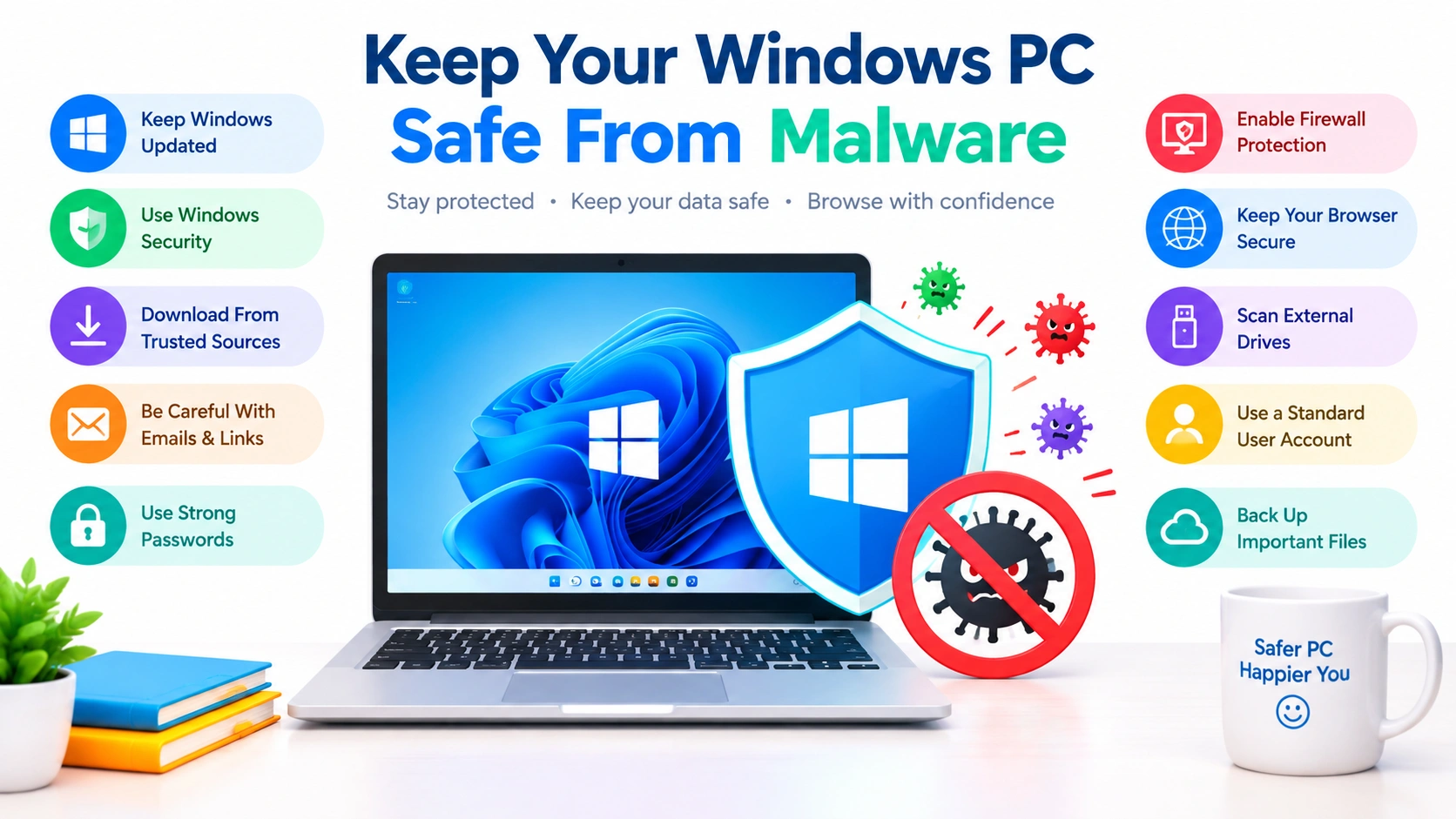
Malware remains one of the most common threats facing Windows users. Viruses, ransomware, spyware, trojans, and other malicious programs can steal personal information, damage files, slow down your computer, or give attackers unauthorized access.
The good news is that protecting a Windows PC does not require complicated security tools. A combination of built-in Windows security features, regular updates, safe browsing habits, strong account protection, and reliable backups can significantly reduce your risk.
In this guide, you will learn how to secure your Windows PC from malware and build a stronger layer of protection against common threats.
What Is Malware?
Malware is short for malicious software. It refers to software intentionally designed to harm a computer, steal information, disrupt operations, or gain unauthorized access.
Common types include:
- Viruses: Malicious programs that can modify or damage files.
- Trojans: Programs that appear legitimate but perform harmful actions.
- Ransomware: Malware that encrypts files and demands payment.
- Spyware: Software that secretly monitors activity or collects information.
- Adware: Software that displays unwanted advertisements and may track browsing behavior.
- Worms: Malware capable of spreading between computers or systems.
- Keyloggers: Programs that record keystrokes, potentially capturing passwords and other sensitive information.
Understanding these threats makes it easier to recognize why basic Windows security practices are important.
1. Keep Windows Updated
One of the simplest ways to protect your PC is to install Windows updates regularly.
Security updates often address vulnerabilities that attackers could exploit. Delaying updates can leave known weaknesses unpatched.
To check for updates:
- Open Settings.
- Select Windows Update.
- Click Check for updates.
- Install available updates.
- Restart the computer if required.
You should also keep applications, browsers, drivers, and other commonly used software updated. Malware can sometimes exploit vulnerabilities in third-party applications rather than Windows itself.
2. Use Windows Security
Windows includes built-in security features that can provide substantial protection without requiring additional antivirus software.
Open Windows Security from the Start menu and review its main protection areas, including:
- Virus & threat protection
- Firewall & network protection
- App & browser control
- Device security
- Account protection
Make sure real-time protection is enabled and avoid disabling security features unless you have a specific reason and understand the consequences.
3. Keep Microsoft Defender Antivirus Enabled
Microsoft Defender Antivirus provides real-time protection against many types of malicious software.
To review its settings:
- Open Windows Security.
- Select Virus & threat protection.
- Open Manage settings.
- Make sure Real-time protection is enabled.
- Keep cloud-delivered protection and automatic sample submission enabled when appropriate.
Run a quick scan periodically. If you suspect your computer has been infected, perform a more thorough scan rather than relying only on a quick scan.
4. Turn On the Windows Firewall
A firewall helps control network traffic entering and leaving your computer. Windows includes a built-in firewall that should generally remain enabled.
Check it by opening:
Windows Security → Firewall & network protection
Review the firewall status for your active network. Avoid turning the firewall off simply because an application or game is having connection problems. Instead, investigate the application-specific firewall permission.
5. Download Software From Trusted Sources
A common way malware reaches Windows PCs is through questionable software downloads.
Whenever possible, download programs from:
- The developer’s official website
- The Microsoft Store
- Well-known and reputable software repositories
Be particularly cautious with cracked software, unauthorized activators, suspicious browser extensions, and unknown utilities. A program offering a free license or premium feature can sometimes be bundled with unwanted or malicious software.
6. Be Careful With Email Attachments
Malware can arrive through seemingly legitimate email messages.
Do not automatically open unexpected attachments, especially executable files or documents that ask you to enable unusual features.
Be suspicious when an email:
- Creates a strong sense of urgency
- Requests passwords or financial information
- Contains unexpected attachments
- Uses suspicious links
- Claims your account will immediately be closed
- Comes from an unfamiliar sender
When in doubt, verify the message through the organization’s official website or another trusted communication channel.
7. Think Before Clicking Links
Malicious links can lead to fake login pages, fraudulent websites, malware downloads, or exploit attempts.
Before clicking an unfamiliar link, consider where it leads and whether the message makes sense.
For important accounts, it is often safer to manually open the official website instead of following an unexpected link in an email or message.
8. Enable Reputation-Based Protection
Windows provides reputation-based security features that can help protect against potentially unwanted applications and suspicious downloads.
Go to:
Windows Security → App & browser control → Reputation-based protection
Review the available protections and keep appropriate options enabled.
These features can provide an additional layer of defense when downloading or running unfamiliar applications.
9. Use Strong, Unique Passwords
Malware is not the only security threat. Attackers may also attempt to access accounts using stolen or reused passwords.
Use a different password for every important account. Password managers can make this easier by generating and storing strong passwords.
For sensitive accounts, enable multi-factor authentication (MFA) whenever available. Even if someone obtains your password, an additional authentication factor can make unauthorized access significantly more difficult.
10. Use a Standard User Account for Everyday Tasks
Using an administrator account for everything can increase the potential impact of malicious software.
For everyday activities, consider using a standard user account and reserve administrator privileges for tasks that actually require them.
When Windows displays a User Account Control prompt, don’t automatically approve it. Check which application is requesting elevated privileges and ask yourself whether you expected that action.
11. Keep Your Browser Secure
Web browsers are frequent targets for phishing, malicious advertisements, unwanted extensions, and drive-by downloads.
Improve browser security by:
- Keeping the browser updated
- Removing extensions you no longer use
- Installing extensions only from trusted sources
- Avoiding suspicious websites
- Reviewing saved passwords and security settings
- Blocking or ignoring suspicious pop-ups
Be especially careful with browser extensions that request extensive permissions.
12. Avoid Pirated and Cracked Software
Pirated applications and unauthorized activation tools are particularly risky because you cannot always verify what has been modified or bundled with them.
A seemingly useful activation tool could contain a password stealer, remote-access component, ransomware, or other malware.
Using legitimate software and keeping licenses current is one of the easiest ways to reduce this particular attack surface.
13. Scan USB Drives and External Storage
USB drives can carry malicious files between computers.
Before opening files from an unfamiliar removable drive:
- Connect the drive.
- Allow Windows Security to inspect it when prompted.
- Scan the drive if you are uncertain about its contents.
- Avoid automatically running unfamiliar programs.
Do not assume that a USB drive is safe simply because it belongs to someone you know.
14. Disable Unnecessary Software and Services
The more applications and services running on a computer, the larger its potential attack surface can become.
Uninstall programs you no longer need and remove suspicious applications.
You can review installed applications through:
Settings → Apps → Installed apps
If you find an application you do not recognize, investigate it before removing it. Some unfamiliar entries are legitimate Windows components or hardware utilities.
15. Back Up Important Files
No security solution can guarantee that malware will never infect your computer.
A reliable backup can help minimize the damage if ransomware or another destructive threat gets through your defenses.
Keep multiple copies of important files, preferably using different storage locations. For particularly important data, maintain at least one backup that is disconnected from the PC when it is not actively being used.
Important files to back up may include:
- Photos
- Documents
- Work projects
- Videos
- Financial records
- Personal files
- Browser or application data that cannot easily be replaced
Regularly test your backups to make sure the files can actually be restored.
16. Watch for Signs of Malware
Early detection can limit potential damage.
Possible warning signs include:
- Unexpected pop-ups
- Unusual browser redirects
- Programs launching without your permission
- Significant unexplained performance problems
- Unknown applications
- Disabled security software
- Unexpected network activity
- Files suddenly becoming inaccessible
- Strange changes to browser settings
- Unusual account activity
One symptom alone does not necessarily mean your PC is infected, but several unusual changes occurring together deserve investigation.
17. What to Do If You Suspect an Infection
If you believe malware is already present, avoid continuing normal activities on the computer.
Start by:
- Disconnecting from the internet if you suspect active malicious activity.
- Opening Windows Security.
- Updating security definitions.
- Running a thorough malware scan.
- Removing or quarantining detected threats.
- Changing important passwords from a known-clean device if account credentials may have been exposed.
- Checking your backups before restoring affected files.
- Seeking professional assistance if the infection persists.
If ransomware is involved, avoid immediately deleting encrypted files. Preserving evidence and affected data may be important for recovery efforts.
A Simple Windows Malware Protection Checklist
For everyday protection, follow this checklist:
- Keep Windows updated.
- Keep Microsoft Defender or another reputable antivirus solution active.
- Keep the firewall enabled.
- Download software from trusted sources.
- Avoid pirated applications and suspicious activators.
- Don’t open unexpected attachments.
- Check suspicious links before clicking.
- Use strong, unique passwords.
- Enable MFA on important accounts.
- Keep browsers and extensions updated.
- Scan unfamiliar removable drives.
- Remove software you no longer need.
- Back up important files regularly.
- Pay attention to unusual PC behavior.
Final Thoughts
Learning how to secure your Windows PC from malware is mostly about building several layers of protection rather than relying on a single security application. Keep Windows and your software updated, use built-in security features, download programs carefully, protect your accounts, and maintain reliable backups.
Most importantly, develop cautious digital habits. Security tools can detect and block many threats, but recognizing suspicious downloads, messages, websites, and software before interacting with them remains one of the strongest defenses for any Windows PC.