

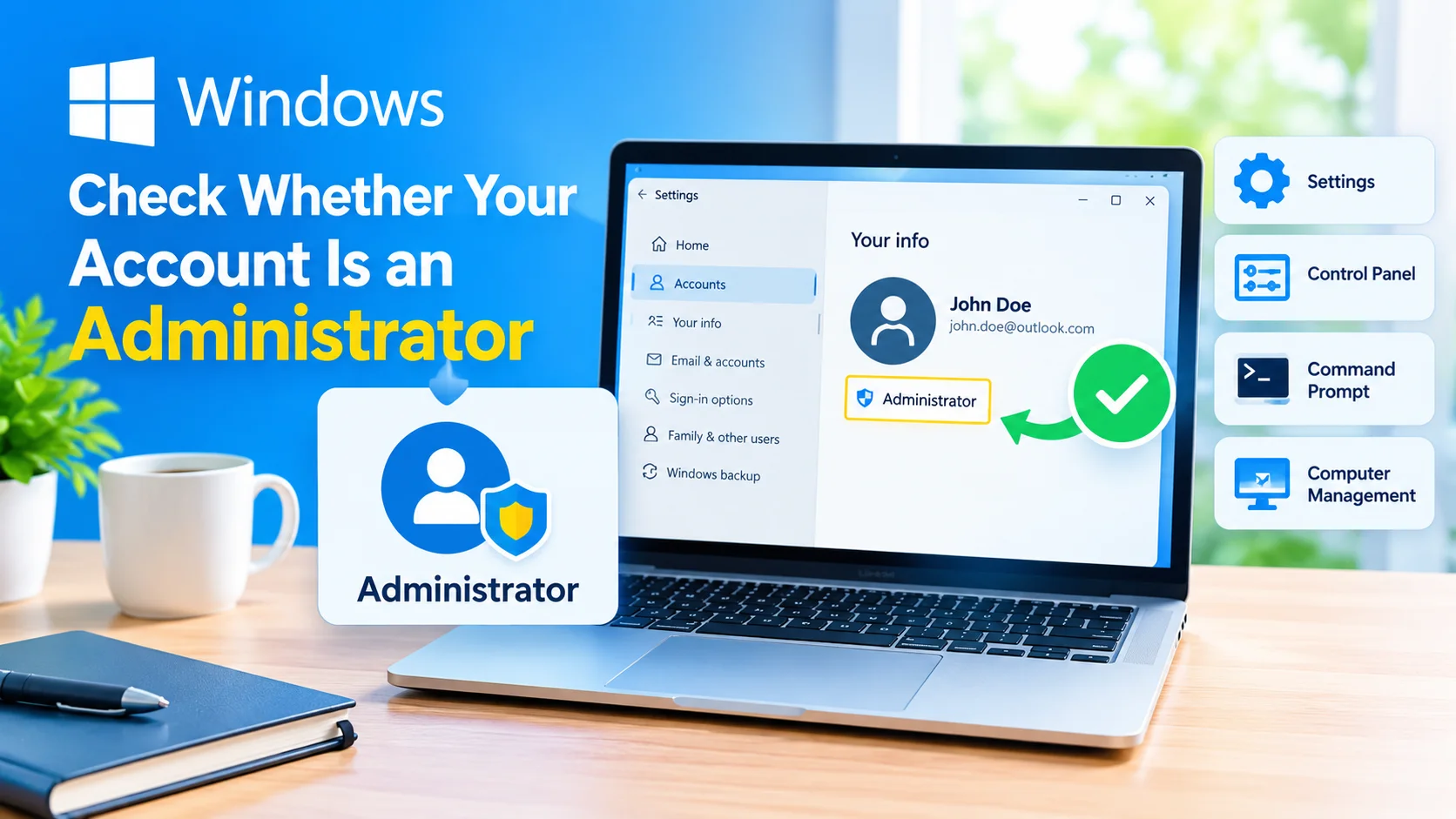
Check Whether Your Windows Account Is an Administrator before changing important Windows settings, installing software, or troubleshooting system problems. Administrator accounts have additional permissions that allow users to make changes that standard accounts cannot.
Knowing your account type can help you understand why Windows may ask for administrator approval when you perform certain tasks.
What Is an Administrator Account?
An administrator account in Windows has elevated permissions for managing the computer. Administrators can typically install applications, change system-wide settings, manage user accounts, and access certain protected files and folders.
A standard user account has more limited permissions. This can provide an additional layer of protection because applications and changes cannot automatically access every system resource.
Even when you use an administrator account, Windows may still display a User Account Control (UAC) prompt before allowing certain actions.
Check Your Account Type in Windows Settings
One of the easiest ways to check your account type is through Windows Settings.
- Press Windows + I to open Settings.
- Select Accounts.
- Choose Your info.
- Look below your account name and profile information.
- Windows may indicate whether the account is an Administrator.
This method is useful when you want to quickly confirm your account permissions without using command-line tools.
Check Your Account Type Through Control Panel
You can also use the traditional Control Panel.
- Press Windows + R.
- Type control and press Enter.
- Select User Accounts.
- Select User Accounts again.
- Your account type should be displayed with your account information.
If the account is listed as an administrator, it has administrative privileges on the computer.
Check Using Command Prompt
Command Prompt provides another quick method.
- Open Command Prompt.
- Type the following command:
whoami /groups
- Press Enter.
- Review the displayed groups and permissions.
You can also use:
net user %username%
Look for the Local Group Memberships section. If Administrators appears there, your account belongs to the local Administrators group.
Check Using Computer Management
On Windows editions that provide Computer Management, you can inspect local users and groups.
- Right-click the Start button.
- Select Computer Management.
- Expand Local Users and Groups.
- Select Users.
- Find your account and review its membership.
You can also open Groups, select Administrators, and check whether your account is listed.
Why Administrator Permissions Matter
Administrator permissions are useful when performing tasks that affect the entire computer. These can include installing certain applications, changing security settings, managing other user accounts, and modifying protected system files.
However, administrator access should be used carefully. Malware or unwanted software running with elevated privileges may be able to make more significant changes to your system.
For everyday activities such as browsing the web, reading email, and creating documents, you generally do not need to perform tasks with elevated privileges.
What to Do If You Are Not an Administrator
If Windows shows that your account is a standard user, you may need an administrator account to complete certain tasks.
If the computer belongs to you, you can sign in with another administrator account and change the appropriate account settings.
On a work or school computer, administrative permissions may be controlled by an organization. In that situation, contact your IT administrator rather than attempting to bypass the restrictions.
Administrator Account vs. UAC
Being an administrator does not mean every program automatically receives full system access.
Windows uses User Account Control (UAC) to request confirmation when an operation requires elevated privileges. This helps prevent unauthorized changes from being made silently.
When a UAC prompt appears, review the application and requested action before selecting Yes.
This guide explains practical ways to fix Access Denied errors in Windows, starting with simple solutions and progressing to more advanced permission repairs.
Final Thoughts
Checking your Windows account type is a simple step that can save time when troubleshooting or installing software. Check Whether Your Windows Account Is an Administrator through Settings, Control Panel, Command Prompt, or Computer Management to understand your current permissions.
Knowing whether you have administrator access also helps explain why Windows may request approval for certain tasks and when you may need assistance from another administrator.