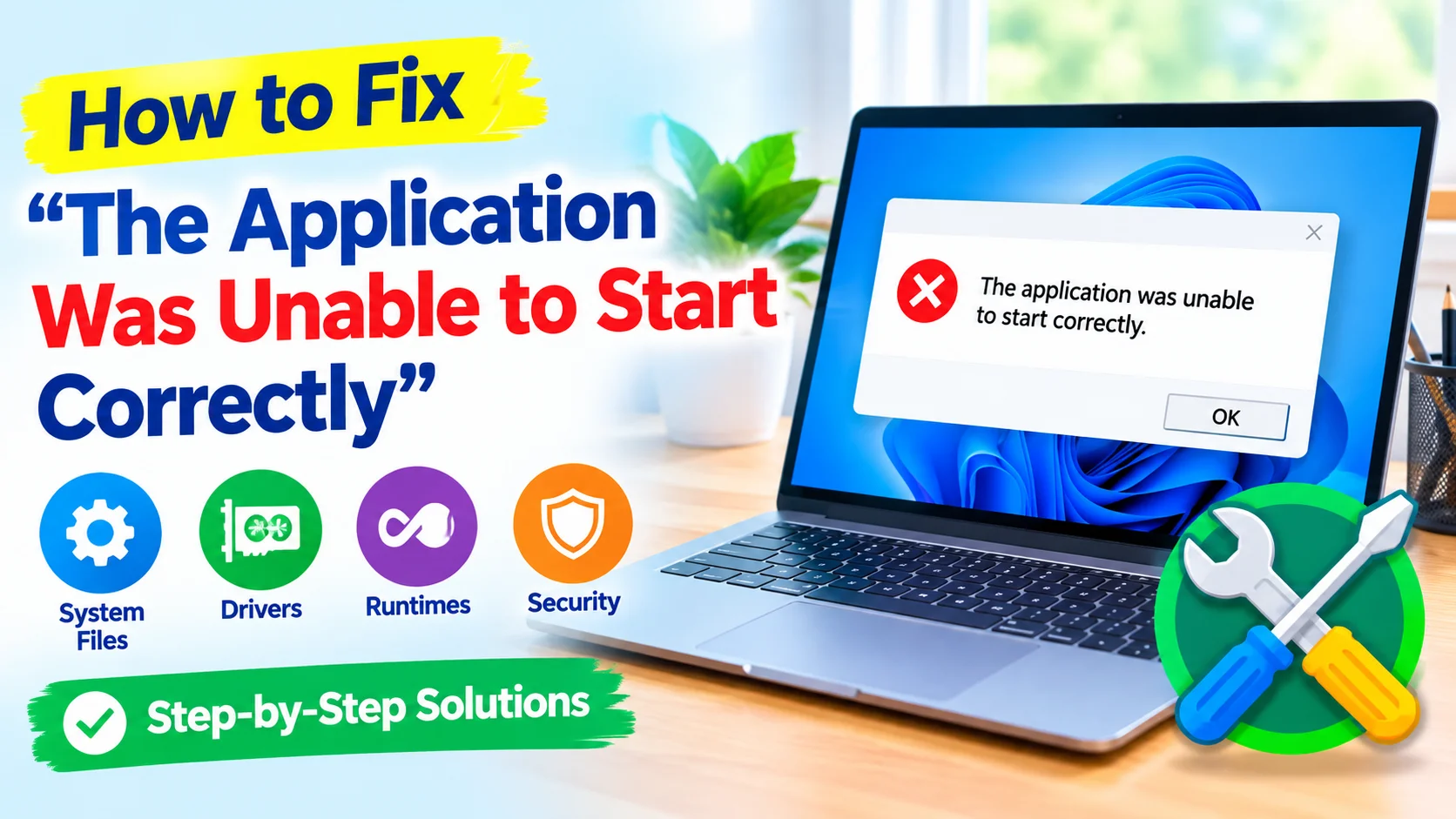
Seeing the “The Application Was Unable to Start Correctly” error in Windows can be frustrating, especially when an important program refuses to open. This message is commonly accompanied by an error code such as 0xc000007b, 0xc0000142, or another hexadecimal code.
The problem can be caused by missing system files, damaged application components, outdated drivers, incompatible software, or missing Microsoft runtime packages. Fortunately, several troubleshooting methods can help you identify and fix the underlying issue.
What Does “The Application Was Unable to Start Correctly” Mean?
This Windows error means that an application could not initialize properly. Windows attempts to launch the program but encounters a problem that prevents it from starting.
Common causes include:
- Corrupted application files
- Missing or damaged DLL files
- Outdated Windows components
- Incorrect Microsoft Visual C++ Redistributable versions
- Damaged .NET Framework components
- Outdated graphics or device drivers
- Compatibility problems
- Malware or unwanted software
- Corrupted Windows system files
Before making major changes, restart your computer and try launching the application again. A temporary Windows or application problem may disappear after a reboot.
1. Restart Your Windows PC
A simple restart can resolve temporary system conflicts that prevent an application from starting.
Click Start > Power > Restart, then wait for Windows to load completely. Try opening the affected application again.
If the same error appears, continue with the troubleshooting steps below.
2. Run the Application as an Administrator
Some applications require elevated permissions to access specific files or system resources.
Right-click the application’s shortcut and select Run as administrator.
If the program opens successfully, you can configure it to always run with administrator privileges:
- Right-click the application shortcut.
- Select Properties.
- Open the Compatibility tab.
- Check Run this program as an administrator.
- Click Apply and then OK.
Avoid running unknown applications as administrator because elevated permissions give software greater access to your system.
Learn how to install software without administrator rights on Windows using practical methods, portable apps, and safe alternatives when admin access is unavailable.
3. Update Windows
An outdated version of Windows can cause compatibility problems with newer applications.
To check for updates:
- Open Settings.
- Select Windows Update.
- Click Check for updates.
- Install available updates.
- Restart your computer if Windows requests it.
After updating, try launching the application again.
Learn how to fix common Windows Update errors with simple troubleshooting steps, including restarting services, repairing system files, and checking updates.
4. Repair or Reinstall the Problematic Application
The application itself may contain corrupted or missing files.
If Windows provides a repair option, use it before reinstalling the program.
Go to:
Settings > Apps > Installed apps
Find the affected application and check whether Advanced options, Repair, or Reset is available.
If repair does not work, uninstall the application and download a fresh installer from its official source. Reinstalling the program can replace damaged files that are preventing it from starting.
5. Install or Repair Microsoft Visual C++ Redistributables
Many Windows applications depend on Microsoft Visual C++ runtime components. If these components are missing or corrupted, applications may fail to start.
Check whether the application requires a particular Visual C++ Redistributable version and install the appropriate package from Microsoft’s official website.
If multiple versions are already installed, avoid randomly deleting them. Different programs can depend on different runtime versions.
Learn what Microsoft Visual C++ Redistributable is, why Windows apps need it, and how to install, repair, or troubleshoot runtime errors.
6. Check .NET Framework Components
Some Windows applications rely on the Microsoft .NET Framework.
If a program that previously worked suddenly stops launching, a damaged .NET installation may be responsible.
Open Windows Features by searching for:
Turn Windows features on or off
Check the .NET-related features available on your version of Windows. You can also use Microsoft’s official .NET repair and installation tools when appropriate.
7. Run System File Checker
Windows includes System File Checker (SFC), which can scan protected system files for corruption.
Open Command Prompt as administrator and run:
sfc /scannow
Wait for the scan to reach 100 percent. If Windows finds damaged system files, it may automatically repair them.
Restart your computer afterward and test the application.
Learn how to run Windows System File Checker (SFC) to scan and repair corrupted system files, fix Windows errors, and improve system stability.
8. Use DISM to Repair Windows Components
If SFC cannot repair the problem, use the Deployment Image Servicing and Management tool.
Open Command Prompt as administrator and run:
DISM /Online /Cleanup-Image /RestoreHealth
The process can take some time. Once it finishes, run:
sfc /scannow
Restart Windows after the repairs are complete.
9. Update Your Device Drivers
Outdated or corrupted drivers can sometimes prevent applications, particularly games and graphics-intensive programs, from starting correctly.
Pay particular attention to your:
- Graphics driver
- Chipset driver
- Audio driver
- Network driver
For graphics drivers, download updates from the official NVIDIA, AMD, or Intel website when possible.
Avoid downloading individual DLL files from unfamiliar websites. Replacing DLL files manually can introduce security risks or create additional compatibility problems.
10. Try Compatibility Mode
Older applications may not work correctly with newer versions of Windows.
To enable compatibility mode:
- Right-click the application’s executable or shortcut.
- Select Properties.
- Open Compatibility.
- Select Run this program in compatibility mode for.
- Choose an appropriate older Windows version.
- Click Apply and OK.
Launch the program again to see whether the problem has been resolved.
11. Check for Malware
Malware can damage system files or interfere with application components.
Run a scan using Windows Security or another reputable security solution.
Open:
Settings > Privacy & security > Windows Security > Virus & threat protection
Run a scan and follow Windows Security’s recommendations if it detects a threat.
12. Perform a Clean Boot
Background applications and third-party services can sometimes interfere with software.
A clean boot starts Windows with a limited set of startup services, making it easier to identify software conflicts.
If the application works during a clean boot, gradually re-enable third-party services and startup programs until you identify the software causing the conflict.
This method is particularly useful when the error began after installing new software.
13. Check the Error Code
The hexadecimal code displayed with the message can provide an important clue.
For example, 0xc000007b is often associated with application or runtime compatibility problems, while other codes can point toward different causes.
Search for the exact error code together with the application’s name. Avoid following instructions that tell you to download random DLL files or disable Windows security features without a clear reason.
14. Restore Windows to an Earlier State
If the application worked previously and the problem appeared after a recent system change, System Restore may help.
System Restore can return certain system files, drivers, and settings to an earlier restore point without normally affecting personal documents.
Search Windows for Create a restore point and open the System Properties window. From there, you can access System Restore if restore points are available.
15. Reinstall the Application as a Last Resort
If none of the previous solutions work, perform a clean reinstall.
First, uninstall the application normally. Restart Windows, then download the latest version from the developer’s official website.
Follow the installation instructions carefully and make sure your computer meets the program’s system requirements.
How to Prevent the Error in the Future
You can reduce the chance of seeing this Windows error by following a few maintenance practices:
- Keep Windows updated.
- Install application updates from trusted sources.
- Keep device drivers current.
- Avoid downloading DLL files from unofficial websites.
- Use reputable security software.
- Don’t modify system folders unnecessarily.
- Maintain enough free storage space.
- Create restore points before making major system changes.
Frequently Asked Questions
Why does Windows say the application was unable to start correctly?
The error can occur when application files, DLL files, Windows components, drivers, or runtime packages are missing or corrupted. Compatibility problems can also prevent an application from initializing.
What does error 0xc000007b usually mean?
Error 0xc000007b commonly occurs when Windows encounters a problem involving application components or incompatible 32-bit and 64-bit dependencies. Repairing system files and installing the correct runtime components may help.
Should I download the missing DLL from the internet?
It is generally safer not to download individual DLL files from random websites. Instead, repair the application, update Windows, reinstall the required runtime package, or use Windows repair tools.
Can reinstalling the application fix the error?
Yes. If the application’s files are damaged or incomplete, uninstalling and reinstalling it can replace the problematic components.
Final Thoughts
The “The Application Was Unable to Start Correctly” error can have several causes, but it is often possible to resolve without reinstalling Windows. Start with simple solutions such as restarting the computer, updating Windows, repairing the affected application, and checking system files.
If those steps do not work, investigate Microsoft runtime components, drivers, compatibility settings, malware, and background software conflicts. Most importantly, avoid downloading unknown DLL files or system utilities from untrusted websites.