

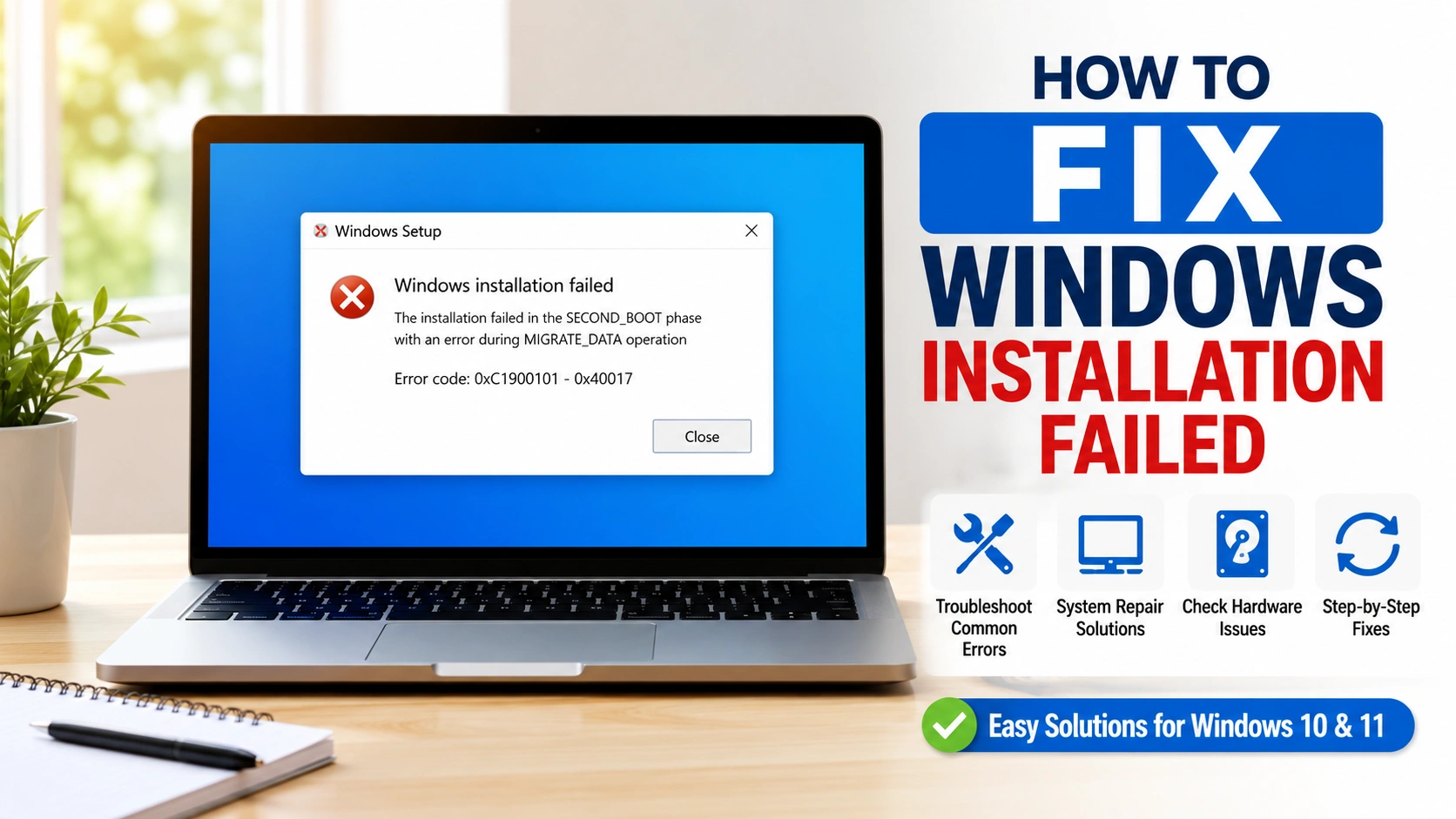
Fix Windows Installation Failed issues can be frustrating, especially when you’re upgrading your system or performing a clean installation. A failed setup may stop at a certain percentage, restart repeatedly, or display error messages that prevent Windows from installing correctly.
In many cases, installation problems are caused by corrupted update files, damaged system components, or essential Windows services that are not running properly. If you’re experiencing update-related issues before the installation begins, you may also find our guide on Fix Windows Update Error 0x80070002 on Windows 10 and 11 helpful.
Fortunately, most installation problems can be resolved without replacing hardware. This guide explains how to Fix Windows Installation Failed issues using proven troubleshooting methods for Windows 10 and Windows 11. If the installation failure is linked to corrupted system files, consider reading How to Fix Ntdll.dll Crash Errors on Windows for additional repair techniques.
What Causes Windows Installation Failed Errors?
Before attempting repairs, it’s important to understand what triggers a Fix Windows Installation Failed situation. Identifying the root cause can help you apply the correct solution and avoid repeated installation errors.
Typical causes include:
- Corrupted installation media
- Insufficient disk space
- Damaged system files
- Outdated BIOS or firmware
- Incompatible hardware drivers
- Faulty RAM or storage devices
- Third-party antivirus software interference
- Incorrect partition configurations
- Corrupted Windows Update components
In some cases, repeated installation failures may indicate underlying storage problems that can put important files at risk. Before making major changes to partitions or reinstalling Windows, consider reviewing our Data Recovery resources for guidance on protecting and recovering valuable data from problematic drives.
Identifying the exact cause helps you choose the most effective solution and successfully Fix Windows Installation Failed issues on Windows 10 and Windows 11.
1. Disconnect Unnecessary Devices
External devices sometimes interfere with Windows Setup and are a common reason users need to Fix Windows Installation Failed errors.
Steps:
- Turn off the computer.
- Disconnect printers, USB drives, webcams, and external storage.
- Leave only the keyboard, mouse, and monitor connected.
- Restart the installation.
This simple step eliminates hardware conflicts that can cause Windows installation failed messages during setup. External storage devices, printers, and other peripherals may create driver conflicts that prevent Windows Setup from completing successfully.
By removing potential hardware conflicts, you can often Fix Windows Installation Failed problems without making advanced system changes.
2. Verify Available Disk Space
Windows requires sufficient free storage to complete installation.
Recommended free space:
- Windows 10: 32 GB minimum
- Windows 11: 64 GB minimum
To free space:
- Delete temporary files.
- Remove unused applications.
- Empty the Recycle Bin.
- Use Disk Cleanup.
Low storage is a common reason users need to Fix Windows Installation Failed errors.
3. Run Windows Update Troubleshooter
If the issue occurs during an upgrade, Microsoft’s troubleshooter may help Fix Windows Installation Failed errors caused by update-related problems.
Steps:
- Open Settings.
- Navigate to System > Troubleshoot.
- Select Other Troubleshooters.
- Run Windows Update Troubleshooter.
- Apply the recommended fixes.
Restart the PC after completion.
The Windows Update Troubleshooter can automatically detect and repair issues that prevent updates and operating system installations from completing successfully.
If Windows services required for updates are disabled, see Fix Windows Error 0x80070422 Service Not Running for additional troubleshooting steps that can restore normal update functionality.
Running the troubleshooter is a simple way to Fix Windows Installation Failed issues that occur during Windows 10 and Windows 11 upgrades.
4. Repair Corrupted System Files
Damaged system files can prevent installation from completing and are a common reason users need to Fix Windows Installation Failed errors.
Open Command Prompt as Administrator and run:
sfc /scannow
After the scan finishes, run:
DISM /Online /Cleanup-Image /RestoreHealth
These built-in tools repair corrupted Windows components, restore missing system files, and resolve issues that may be causing installation failures.
For more advanced repair techniques, check How to Fix Ntdll.dll Crash Errors on Windows, which covers common Windows file corruption problems that can interfere with operating system installation.
Running SFC and DISM scans can often Fix Windows Installation Failed problems without requiring a complete Windows reinstallation.
5. Disable Third-Party Antivirus Software
Security software can sometimes block installation files and contribute to Fix Windows Installation Failed issues.
Temporarily:
- Disable real-time protection.
- Pause firewall monitoring if available.
- Restart Windows Setup.
After installation completes, re-enable protection immediately.
Disabling antivirus software can often Fix Windows Installation Failed errors caused by false detections or blocked setup files.
6. Update Device Drivers
Outdated drivers frequently trigger installation errors and are a common reason users need to Fix Windows Installation Failed problems.
Update:
- Storage controller drivers
- Graphics drivers
- Chipset drivers
- Network drivers
Driver incompatibility can prevent Windows Setup from communicating correctly with essential hardware components, causing the installation process to stop unexpectedly. Updating your drivers ensures better compatibility with the latest Windows 10 and Windows 11 releases.
Download the latest drivers directly from your hardware manufacturer’s website and install them before attempting the setup again. This step can often Fix Windows Installation Failed errors caused by outdated or unsupported hardware drivers.
For additional installation guidance and troubleshooting resources, refer to Microsoft Windows Installation Support.
7. Check RAM for Hardware Problems
Faulty memory modules can interrupt installation and are a common cause of Fix Windows Installation Failed issues.
To test RAM:
- Press Windows + R.
- Type:
mdsched.exe
- Select Restart now and check for problems.
Windows Memory Diagnostic will scan for errors automatically and identify potential memory-related issues that may prevent Windows Setup from completing successfully.
If the diagnostic tool reports memory errors or your system fails to detect installed RAM correctly, you may need to inspect the motherboard memory slots. Our Fix RAM Slot Not Working guide provides additional troubleshooting steps for diagnosing faulty RAM slots, memory modules, and motherboard-related issues.
Checking RAM health can often Fix Windows Installation Failed problems caused by unstable or defective memory hardware.
8. Recreate Installation Media
Corrupted USB installation media often causes setup failures and may require users to troubleshoot recurring Windows installation issues manually.
Use the official Microsoft Media Creation Tool:
- Download the latest tool.
- Create a new bootable USB drive.
- Use a USB drive with at least 8 GB capacity.
- Retry installation.
Fresh installation media resolves many setup-related issues and can often Fix Windows Installation Failed errors caused by damaged setup files.
9. Convert Disk Partition Style if Necessary
Incorrect partition formats can prevent Windows Setup from completing and may trigger Fix Windows Installation Failed errors.
Modern systems generally require GPT partitions.
To check:
- Open Disk Management.
- Right-click the target drive.
- Select Properties.
- Check the partition style.
If needed, convert MBR to GPT using DiskPart or Windows Setup tools.
Be sure to back up important data before converting. Partition changes always carry a risk of data loss, especially if errors occur during the conversion process. For additional guidance on protecting important files, explore our Data Recovery resources before making major disk modifications.
Converting the drive to the correct partition style can often Fix Windows Installation Failed issues during installation and improve compatibility with modern Windows systems.
10. Perform a Clean Boot
A clean boot minimizes software conflicts that may contribute to Fix Windows Installation Failed problems.
Steps:
- Press Windows + R.
- Type:
msconfig
- Open Services.
- Check Hide all Microsoft services.
- Click Disable All.
- Restart the PC.
Try the installation again after rebooting.
A clean boot starts Windows with only essential services and drivers, making it easier to identify software conflicts that may be blocking the installation process. If your system experiences performance issues or excessive background processes, you may also find our Windows System Bottleneck guide useful for identifying resource-related problems.
Performing a clean boot can help Fix Windows Installation Failed errors caused by third-party applications, startup programs, and background services.
11. Update BIOS or UEFI Firmware
Older firmware versions may not fully support modern Windows releases and can contribute to Fix Windows Installation Failed issues during setup.
Visit your motherboard manufacturer’s support page and:
- Download the latest BIOS update.
- Follow the official flashing instructions.
- Restart the system.
Firmware updates often resolve persistent installation compatibility issues, improve hardware support, and reduce the likelihood of Windows installation failed errors. If incorrect BIOS settings are causing installation problems, you may also want to review our Reset BIOS Settings guide before updating the firmware.
Updating or resetting BIOS configurations can often Fix Windows Installation Failed problems that are difficult to resolve through standard software troubleshooting methods.
Additional Tips to Prevent Installation Failures
Follow these best practices to prevent Windows installation failed errors and improve the chances of a successful setup:
- Back up important files before installation
- Use official Windows ISO files
- Disconnect unnecessary peripherals
- Keep BIOS updated
- Check storage health regularly
- Maintain sufficient free disk space
- Update critical drivers before upgrading
Taking preventive measures before installing Windows can help Fix Windows Installation Failed issues before they occur. Regular system maintenance, driver updates, and sufficient storage space significantly reduce the likelihood of setup interruptions and compatibility problems.
These best practices help ensure a smooth Windows 10 or Windows 11 installation process while minimizing the risk of installation errors and unexpected failures.
When to Replace Hardware
If Fix Windows Installation Failed solutions do not work after applying all software-based repairs, faulty hardware may be responsible for the installation problem.
Potential hardware failures include:
- Defective SSD or HDD
- Faulty RAM modules
- Damaged motherboard
- Failing power supply
Hardware-related issues can cause repeated Windows installation failed errors, unexpected restarts, blue screen crashes, or setup freezes. Before replacing any components, it is recommended to perform a complete system diagnostic to identify the root cause accurately.
Running hardware diagnostics can help identify the underlying issue. You can also follow our How to Test PC Performance guide to evaluate your storage drive, memory, processor, and overall system stability before investing in replacement hardware.
Conclusion
Learning how to Fix Windows Installation Failed problems can save hours of frustration and prevent unnecessary hardware replacements. In most cases, installation failures are caused by corrupted files, driver conflicts, storage issues, or outdated firmware.
Start with simple solutions such as disconnecting peripherals, repairing system files, and recreating installation media. If the problem persists, test hardware components and update BIOS firmware. Following these proven methods will help ensure a successful Windows installation and a stable operating system.
Once Windows installation is completed successfully, you can further optimize system stability by following Fix CPU 100% Usage in Windows for Better Performance to reduce excessive resource consumption and improve overall responsiveness.