

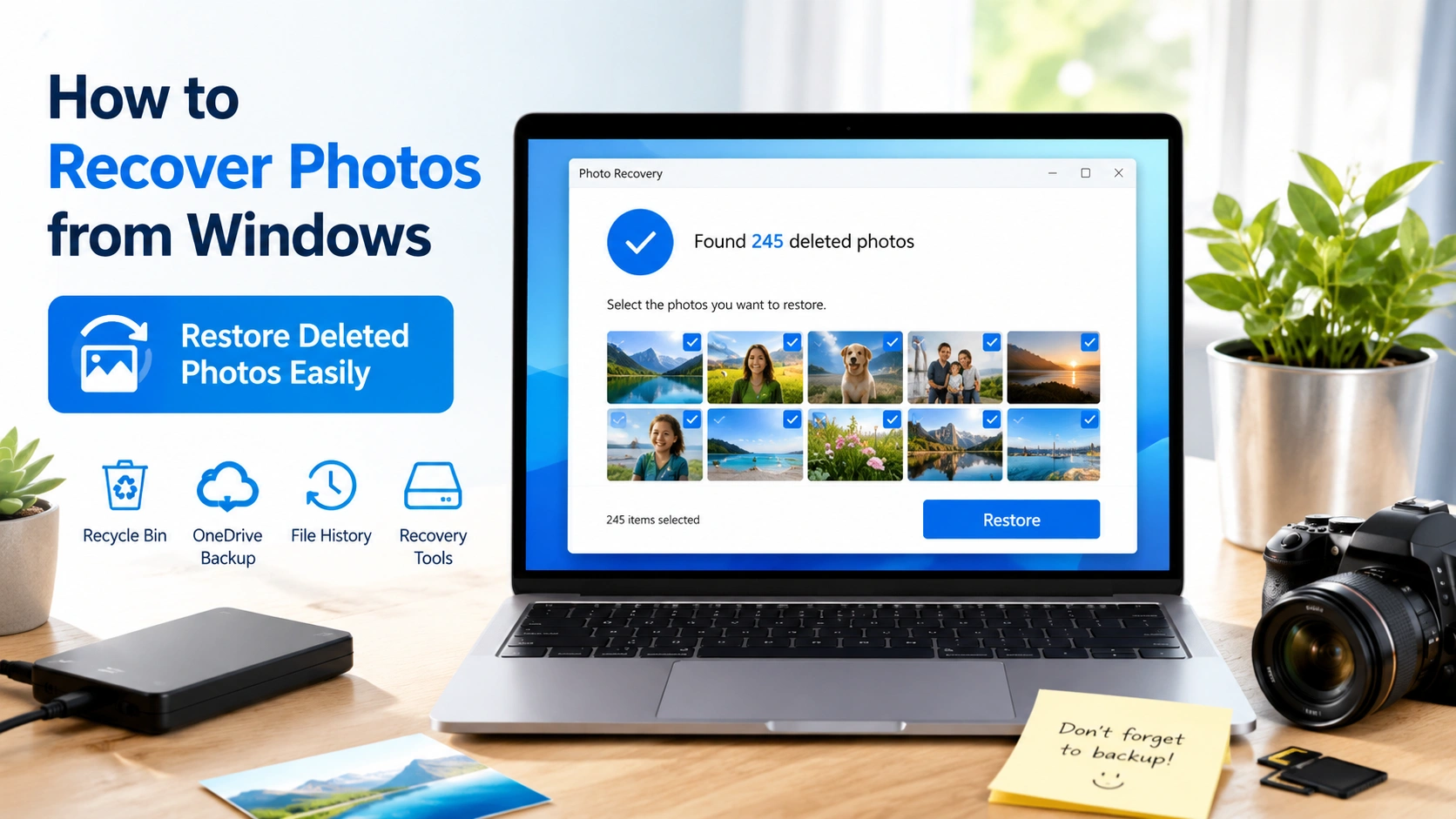
Losing important photos on your computer can be frustrating, especially when they contain personal memories or work-related files. In many cases, users think the files are permanently deleted, even though Windows still provides several ways to recover them. Fortunately, learning How to Recover Photos from Windows is simpler than most users expect when using the right methods.
Before starting the recovery process, it’s also worth checking whether your system recently experienced errors, crashes, or failed updates, as these issues can sometimes contribute to missing files or corrupted storage access. If that happens, you may also find this guide helpful: Fix Windows Installation Failed Guide
Understanding basic system issues can improve your chances of successful recovery and help prevent similar problems in the future. This guide will walk you through practical methods to restore deleted photos using built-in Windows tools, backup features, and reliable recovery options.
Why Photos Get Deleted in Windows
Before learning How to Recover Photos from Windows, it helps to understand why deletion happens:
- Accidental deletion using Shift + Delete
- Formatting drives or USB storage
- System crashes or updates
- Malware or virus infections
- Corrupted storage devices
Once you understand the cause, choosing the right recovery method becomes easier.
How to Recover Photos from Windows Using Recycle Bin
The Recycle Bin is the first place you should check.
Steps:
- Open the Recycle Bin on your desktop
- Search for the deleted photos
- Right-click the file
- Select Restore
This method works if files were recently deleted and not permanently removed.
Tip: If you regularly delete files, checking Recycle Bin should always be your first step in How to Recover Photos from Windows.
How to Recover Photos from Windows Using File History
Windows File History is a built-in backup feature that automatically saves copies of your files if it has been enabled beforehand. This makes it one of the easiest ways to restore deleted photos without third-party tools.
Steps:
- Open Control Panel
- Go to File History
- Click Restore personal files
- Browse and select your photos
- Click Restore
Once restored, your files will return to their original location, making this method especially effective for users who regularly enable automatic backups.
If you want official documentation about Windows backup features, you can refer to Microsoft’s guide here: Back up and restore your files in Windows
How to Recover Photos from Windows Using Previous Versions
Windows also saves earlier file versions.
Steps:
- Navigate to the folder where photos were stored
- Right-click the folder
- Select Restore previous versions
- Choose a version and restore
This is one of the most underrated methods in How to Recover Photos from Windows.
How to Recover Photos from Windows Using OneDrive Backup
If you use OneDrive, your photos may already be safely stored in the cloud, which makes recovery much easier without needing third-party tools.
Steps:
- Go to the OneDrive website
- Log in to your account
- Open the Recycle Bin section
- Select and restore the deleted images
OneDrive usually keeps deleted files for up to 30 days, giving you a good recovery window before permanent removal.
If you experience slow uploads, sync delays, or unstable internet while accessing OneDrive, it can affect the recovery process. In that case, improving your network performance may help, and you can follow this related guide: Fix Network Latency Windows Guide
How to Recover Photos from Windows Using Data Recovery Software
If built-in methods fail, use recovery tools.
Popular tools include:
- Recuva
- EaseUS Data Recovery
- Disk Drill
Steps:
- Install recovery software
- Scan your drive
- Preview recoverable photos
- Restore selected files
Important: Install recovery software on a different drive to avoid overwriting deleted data.
How to Recover Photos from Windows Using CMD (Advanced)
Advanced users can try Command Prompt.
Steps:
- Open CMD as Administrator
- Type:
chkdsk X: /f(replace X with drive letter) - Press Enter
- Wait for scan completion
This method may restore hidden or corrupted files.
Best Practices to Prevent Photo Loss
To reduce the need for How to Recover Photos from Windows, follow these tips:
- Enable File History
- Use cloud backup (OneDrive or Google Drive)
- Avoid storing files on system drive only
- Use antivirus protection
- Regularly copy photos to external storage
Common Mistakes to Avoid
Many users fail during photo recovery because of simple but critical mistakes:
- Installing recovery tools on the same drive where data was lost
- Overwriting deleted files by continuing to use the device heavily
- Ignoring existing backups such as File History or OneDrive
- Using unreliable or unverified recovery software
Avoiding these mistakes significantly increases the chances of successful recovery and prevents permanent data loss.
If you notice that your system is slow or unstable during recovery attempts, it may be related to deeper performance issues that affect file access and storage behavior. In such cases, you can also read this related guide: Windows System Bottleneck Guide
Optimizing system performance not only helps recovery tools run more effectively but also reduces the risk of errors during file restoration.
Final Thoughts
Learning How to Recover Photos from Windows is essential for anyone who uses a PC regularly, especially when important personal or work-related files are involved. The good news is that Windows provides multiple recovery options, including Recycle Bin, File History, cloud backup services, and reliable recovery software.
Each method works in different scenarios, so choosing the right approach depends on how the photos were lost and whether backups were enabled.
The most important thing to remember is to act quickly. The longer you continue using your device after deletion, the higher the risk of overwriting lost data, which can make recovery much more difficult or even impossible.
By understanding these methods and avoiding common mistakes, you can significantly increase your chances of successfully restoring deleted photos in Windows.