

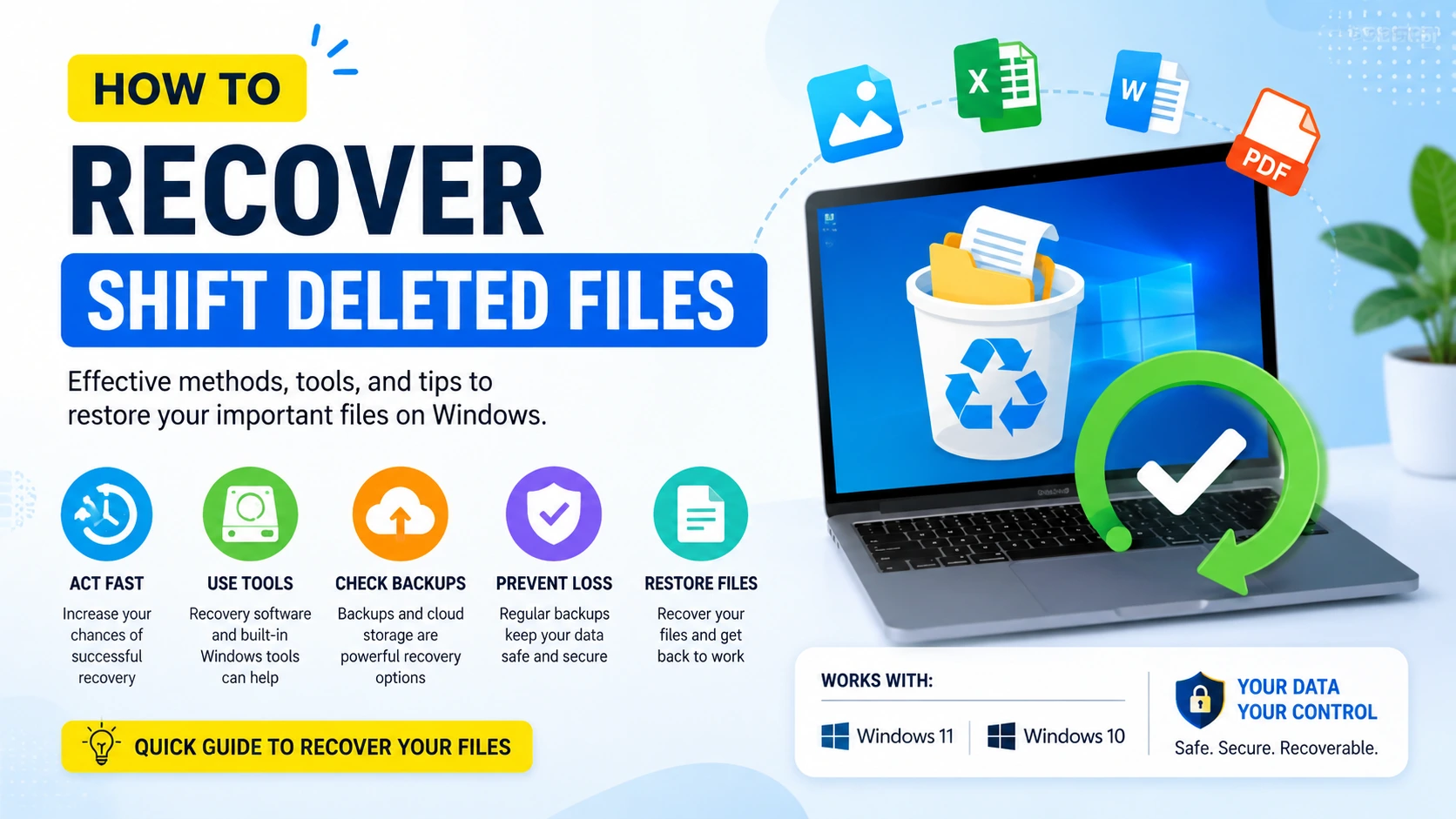
Losing important files after pressing Shift + Delete on Windows can feel permanent because this shortcut bypasses the Recycle Bin. However, it does not always mean your data is gone forever. In many cases, you can still Recover Shift Deleted Files using reliable recovery methods—especially if you act quickly before the deleted data is overwritten.
If you want a deeper technical explanation and more advanced solutions, you can explore this detailed data recovery guide: Data Recovery Guide
This guide explains real, practical, and beginner-friendly ways to restore permanently deleted files from Windows systems using built-in tools, backup options, and professional recovery software.
What Happens When You Recover Shift Deleted Files
When you use Shift + Delete, Windows does not immediately erase the data. Instead, it removes the file’s indexing reference and marks the storage space as available for new data. The actual file content often still exists on the drive until it is overwritten.
This is why it is still possible to Recover Shift Deleted Files, especially if you act quickly and avoid saving new files to the same drive.
For more detailed methods and tools, you can read this guide on Best Free Data Recovery Software for Windows Recovery.
This means you can still Recover Shift Deleted Files until new files overwrite them.
Method 1: Use Windows File History
One of the easiest ways to Recover Shift Deleted Files is using File History.
Steps:
- Open Control Panel
- Go to System and Security
- Click File History
- Select Restore personal files
- Choose the deleted file version
- Click Restore
If File History was enabled before deletion, this method is highly effective.
Method 2: Restore from Previous Versions
Windows creates shadow copies that can help you Recover Shift Deleted Files by restoring earlier versions of folders and files.
Steps:
- Go to the folder where the file was stored
- Right-click the folder
- Select Properties
- Click Previous Versions
- Choose a version before deletion
- Click Restore
This method works especially well for documents and project folders.
For related recovery methods, you can also read:
This guide explains how to restore files that were accidentally replaced or overwritten using Windows built-in recovery features such as File History, Previous Versions, and system backups.
Method 3: Use Windows File Recovery Tool
Microsoft offers an official tool to Recover Shift Deleted Files.
How to use it:
- Install Windows File Recovery from Microsoft Store
- Open Command Prompt as Administrator
- Run recovery command:
Example:
winfr C: D: /extensive /n \Users\Documents\
This tool is powerful but requires correct commands.
Method 4: Check Cloud Backup Services
If you use cloud storage, you may still Recover Shift Deleted Files easily.
Popular services include:
- OneDrive
- Google Drive
- Dropbox
Steps:
- Log in to your cloud account
- Open Trash or Bin folder
- Restore deleted files
Cloud systems often keep deleted files for 30 days or more.
Method 5: Use Data Recovery Software
Third-party tools are widely used to Recover Shift Deleted Files.
Recommended tools:
- Recuva (https://www.ccleaner.com/recuva)
- EaseUS Data Recovery Wizard (https://www.easeus.com)
- Disk Drill (https://www.cleverfiles.com)
How it works:
- Install recovery software
- Scan the drive
- Preview recoverable files
- Restore selected files
Avoid installing software on the same drive where files were deleted.
Method 6: Restore from System Backup
If you regularly create backups, you can Recover Shift Deleted Files easily.
Steps:
- Open Backup Settings
- Choose Restore Files
- Select backup date
- Restore needed files
This is the safest long-term solution.
Method 7: Contact Professional Data Recovery Services
If files are critical and software fails, professionals can Recover Shift Deleted Files using advanced tools.
This is recommended for:
- Business data
- Corrupted drives
- Physically damaged storage
Best Practices to Prevent Permanent Data Loss
To avoid needing to Recover Shift Deleted Files in the future, it is important to build consistent backup and protection habits before data loss occurs.
- Enable File History in Windows to automatically save previous versions of files
- Use cloud backup services such as OneDrive or Google Drive for real-time file syncing
- Avoid storing important files only on a single drive or partition
- Regularly update backups to ensure the latest versions of your data are protected
- Install reliable recovery tools in advance so they are ready when needed
If files are already lost, you can still try Recover Permanently Deleted Files using dedicated methods and tools designed for deep scanning and restoration of deleted data.
Following these practices reduces the risk of permanent data loss and significantly improves your chances of successful recovery when accidents happen.
Conclusion
To Recover Shift Deleted Files, you should act as quickly as possible before new data overwrites the deleted files. Depending on your situation, built-in Windows tools, backup solutions, cloud storage services, and data recovery software can all help restore lost files successfully.
While recovery methods can be effective, prevention remains the best strategy. Regular backups, cloud synchronization, and file versioning features significantly reduce the risk of permanent data loss and make file recovery much simpler and less stressful when unexpected deletion occurs.