How to Uninstall Apps on Windows is a simple way to remove programs you no longer need, free up storage space, and keep your PC organized. Windows provides several built-in methods for removing applications, including the Settings app, Control Panel, and Start menu.
Some programs may also leave behind temporary files, folders, or settings after removal. For this reason, knowing the correct uninstallation method can help you remove unwanted software more thoroughly.
Method 1: Uninstall Apps Using Windows Settings
The Settings app is the easiest method for most Windows 11 and Windows 10 users.
- Press Windows + I to open Settings.
- Select Apps.
- In Windows 11, select Installed apps.
- Find the application you want to remove.
- Click the three-dot menu next to the app.
- Select Uninstall.
- Confirm the action when prompted.
- Follow the application’s uninstallation instructions.
For larger applications, the removal process may take several minutes.
Method 2: Uninstall an App From the Start Menu
Windows also lets you remove many applications directly from the Start menu.
- Click Start.
- Select All apps.
- Find the application you want to remove.
- Right-click the app.
- Select Uninstall.
- Follow the instructions displayed on screen.
This method is particularly convenient for applications installed through the Microsoft Store.
Method 3: Uninstall Programs Using Control Panel
Some traditional desktop programs may still use the classic Control Panel.
- Press Windows + R.
- Type
appwiz.cpl. - Press Enter.
- Find the program you want to remove.
- Select it.
- Click Uninstall.
- Follow the software’s removal wizard.
Control Panel is useful when an application does not appear in the modern Windows Settings list.
Learn how to uninstall programs using Control Panel in Windows with simple step-by-step instructions to safely remove unwanted software.
What to Do If an App Will Not Uninstall
Occasionally, Windows may display an error when you try to remove an application. Try these solutions:
Restart Your PC
Restarting Windows can close processes that are preventing the application from being removed.
Close the Application
Make sure the program and its background processes are not running before attempting the uninstall again.
Use the Software’s Uninstaller
Some applications include their own uninstaller. Check the program’s installation folder or Start menu for an Uninstall option.
Try Safe Mode
If a problematic application continues to resist removal, Windows Safe Mode can help because fewer third-party programs and services run during startup.
Repair Windows System Files
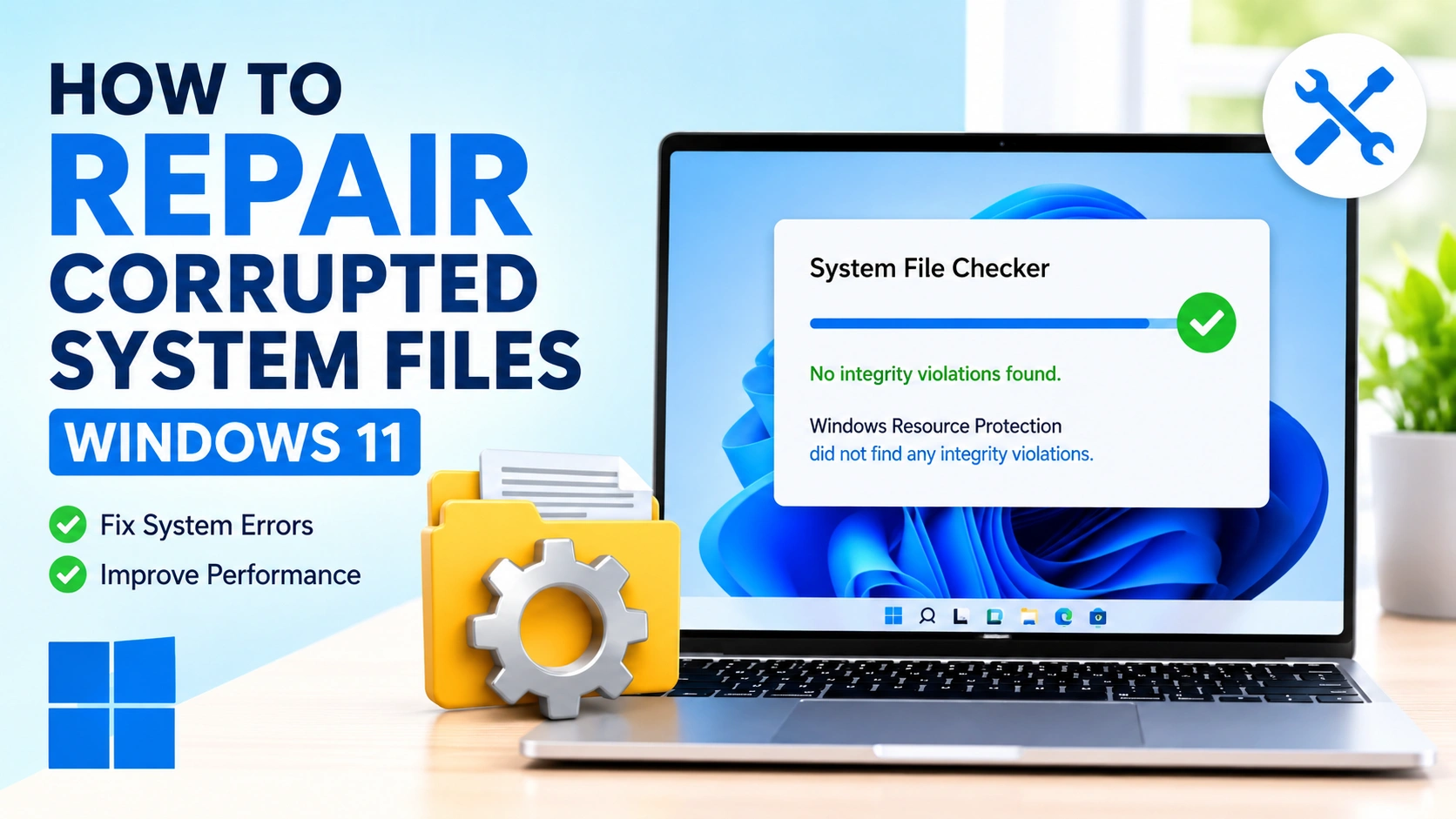
If Windows itself is experiencing problems with application removal, corrupted system files may be involved. Running Windows repair tools such as System File Checker (SFC) can help resolve system-related issues.
Does Uninstalling an App Delete Everything?
Not always. The main application files are normally removed, but some applications can leave behind configuration files, caches, logs, or folders.
Before manually deleting leftover files, make sure they belong to the application you removed. Deleting unrelated Windows files can cause system or application problems.
If you want a more thorough cleanup, you can separately check for application leftovers after the normal uninstall process.
How to Free Up More Space After Uninstalling Apps
Uninstalling unused applications is a good first step toward freeing disk space. You can also:
- Delete unnecessary temporary files.
- Empty the Recycle Bin.
- Remove old downloads.
- Use Windows Storage settings.
- Delete unused files from large folders.
- Uninstall applications you no longer use.
Avoid deleting files from system folders unless you know exactly what they contain.
Should You Restart Windows After Uninstalling an App?
A restart is not always necessary, but it can be helpful when the application has installed background services, drivers, or system components.
If Windows asks you to restart after uninstalling a program, restart the computer before installing another version or performing additional troubleshooting.
Frequently Asked Questions
How do I completely uninstall an app on Windows?
Open Settings > Apps > Installed apps, locate the application, select the three-dot menu, and choose Uninstall. For traditional programs, you can also use Control Panel.
Why can’t I uninstall an app on Windows?
The application may still be running, require administrator permissions, have corrupted installation files, or use a separate uninstaller.
Is it safe to uninstall unused apps?
Generally, yes. However, avoid removing Windows system components, hardware drivers, or software you do not recognize unless you have confirmed what they do.
Does uninstalling an app free up storage?
Yes. Removing an application deletes most of its installed files and can recover the disk space used by the program.
Can I reinstall an app after uninstalling it?
Yes. If the application is still supported, you can usually download and reinstall it from the Microsoft Store or the software developer’s official website.
Final Thoughts
Learning how to uninstall apps on Windows makes it easier to remove unwanted software and manage available storage. Start with Windows Settings, use the Start menu for supported applications, and use Control Panel when dealing with traditional desktop programs.
For applications that refuse to uninstall, restarting Windows, closing the program, or using its dedicated uninstaller can often solve the problem. Always be careful when manually removing leftover files to avoid deleting important Windows components.