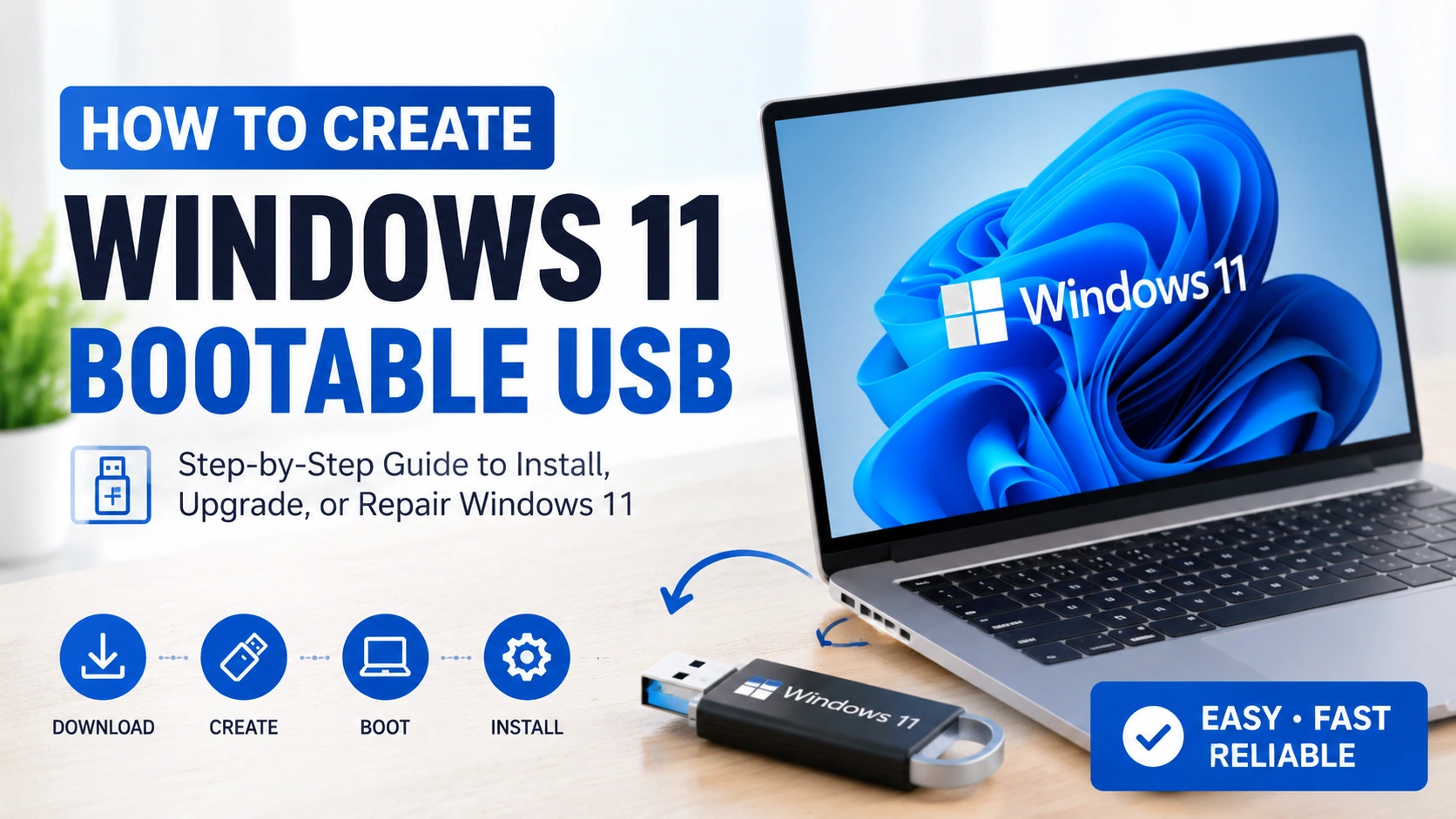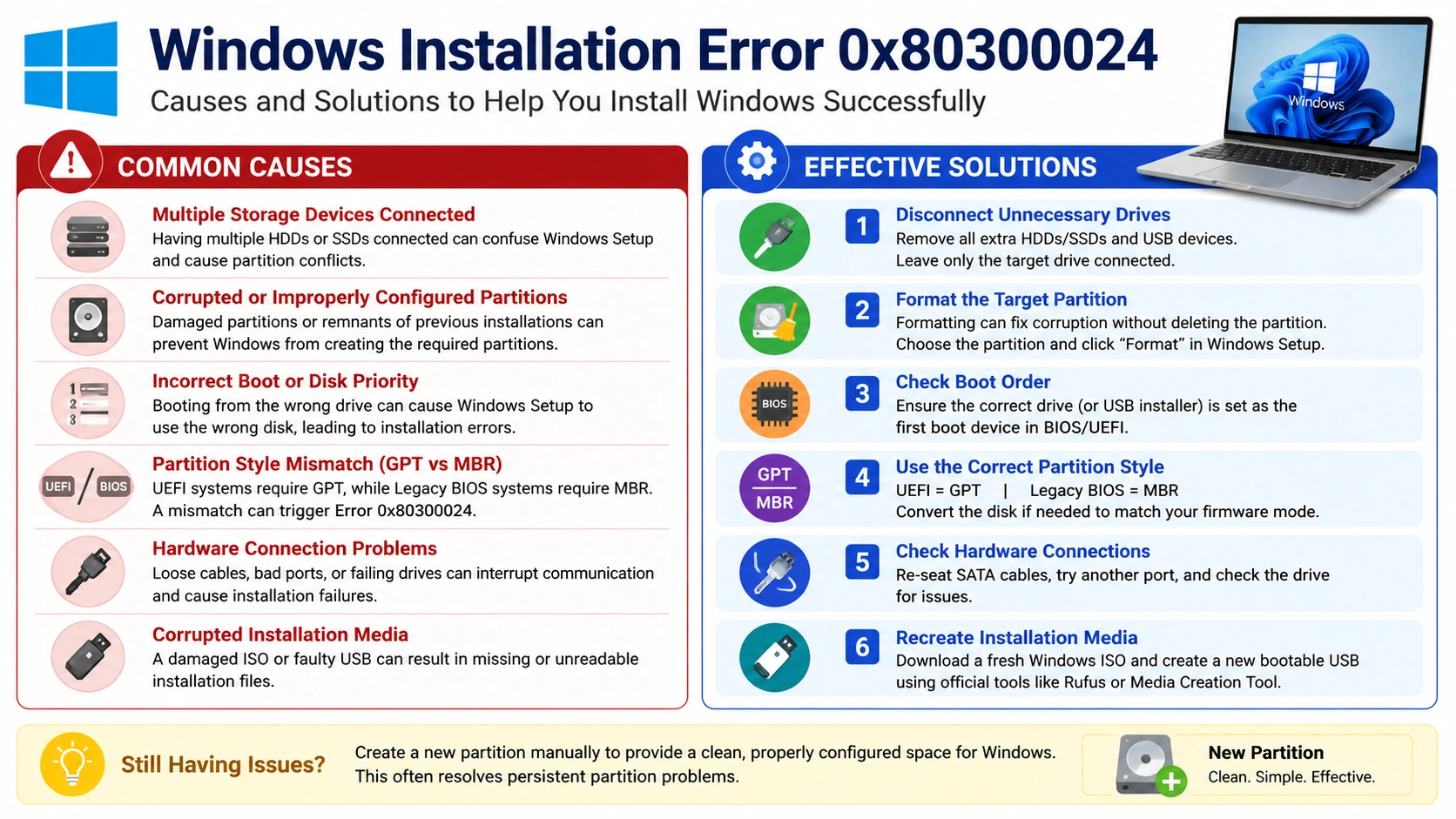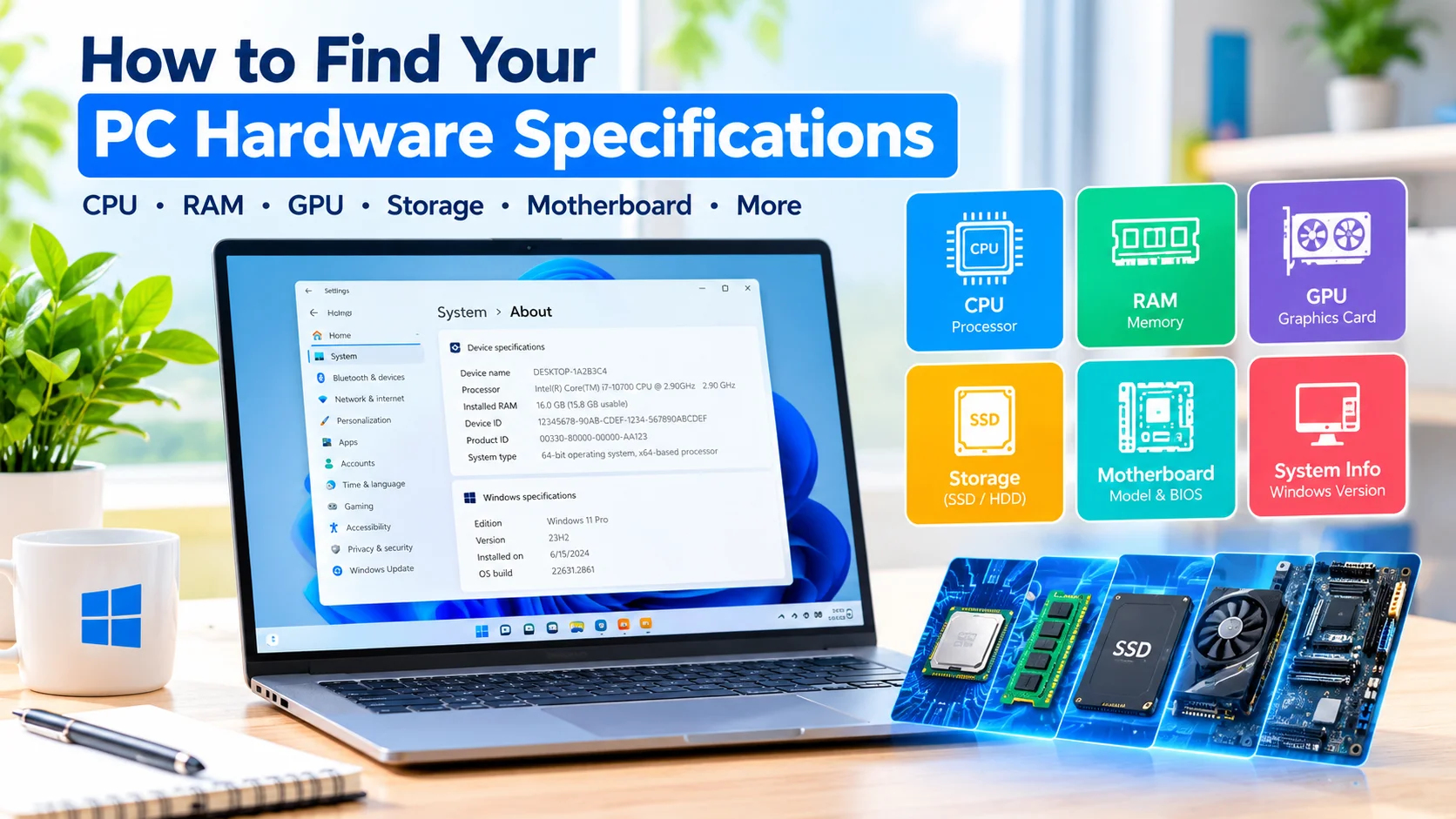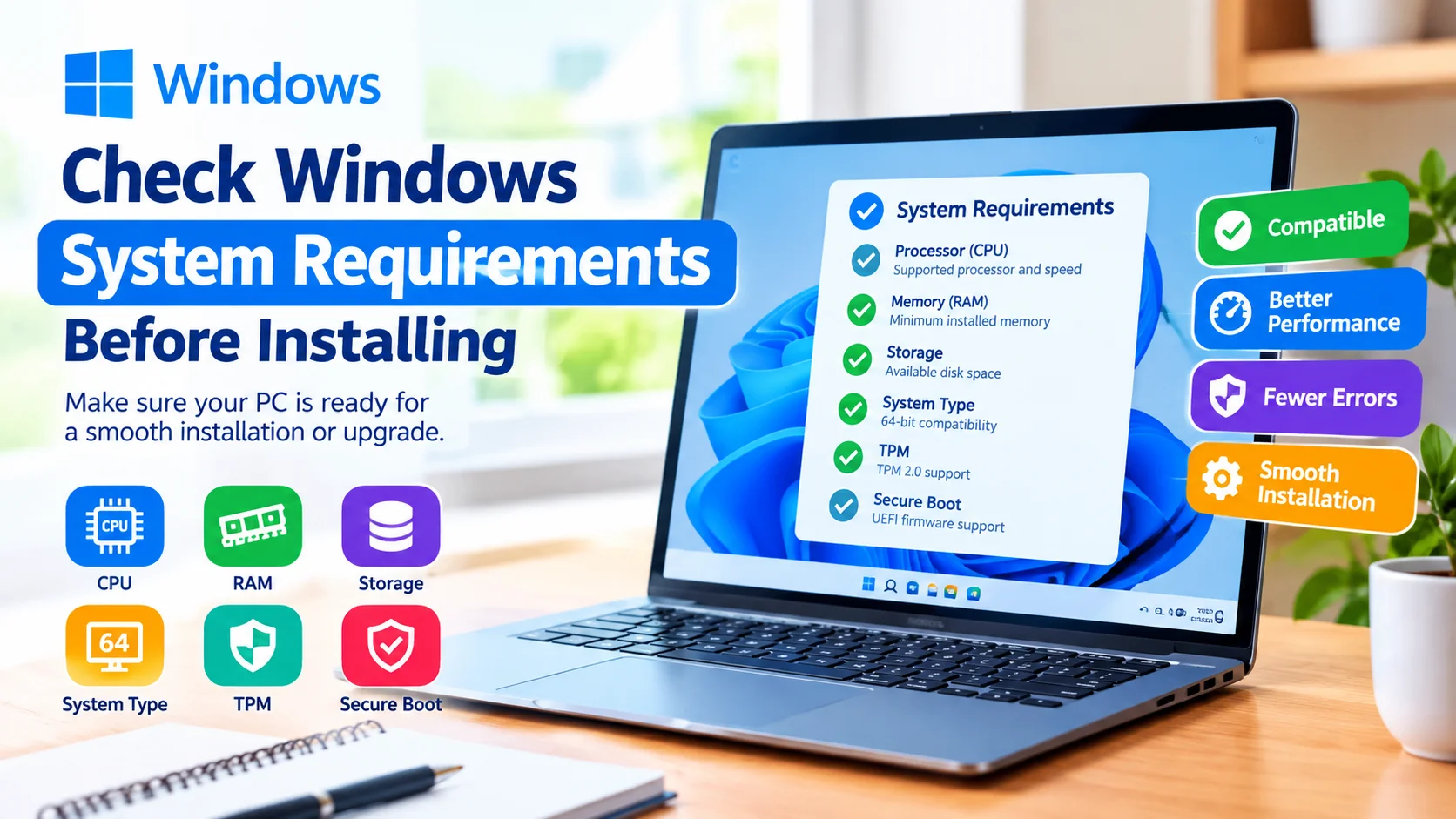
How to Boot from the Windows USB is useful when you need to install Windows 11, repair startup problems, access recovery tools, or troubleshoot a computer that cannot boot normally. A bootable USB drive allows your PC to start the Windows Setup environment instead of loading the operating system from the internal drive.
The process is straightforward, but the exact boot menu key can vary depending on your computer manufacturer.
What You Need Before Booting
Before you begin, make sure you have:
- A bootable Windows 11 USB drive
- A Windows 11-compatible computer
- A USB port that works properly
- A backup of important files if you are planning to reinstall Windows
- Access to the computer’s boot menu or UEFI firmware settings
If you are creating the USB yourself, use Microsoft’s official Windows 11 installation media tools whenever possible.
How to Boot from the Windows 11 USB
Follow these steps to start your computer from the USB drive.
1. Connect the Windows 11 USB
Insert the bootable Windows 11 USB drive into the computer.
For desktop PCs, connect it directly to a USB port on the computer rather than through a USB hub. If the computer does not detect the drive, try another USB port.
Fix USB devices not recognized in Windows with simple troubleshooting steps. Learn how to check USB ports, drivers, Device Manager, and Windows settings.
2. Shut Down or Restart the PC
Save your work and restart the computer.
As soon as the computer begins starting, repeatedly press the key used to open the boot menu. Common keys include:
| Manufacturer | Boot Menu Key |
|---|---|
| Dell | F12 |
| HP | F9 |
| Lenovo | F12 |
| Acer | F12 |
| ASUS | Esc |
| MSI | F11 |
| Gigabyte | F12 |
| Samsung | Esc |
| Toshiba | F12 |
The correct key depends on your computer manufacturer. Some systems briefly display a message such as Press F12 for Boot Options during startup.
3. Open the Boot Menu
When the boot menu appears, look for an entry associated with your USB drive.
It may appear as:
UEFI: USB Storage Device
or:
UEFI: [USB Drive Name]
Select the USB device and press Enter.
4. Wait for Windows Setup to Start
If the USB drive is bootable and the firmware settings are compatible, the computer should start loading Windows Setup.
You may briefly see a message asking you to Press any key to boot from USB. Press a key when prompted.
Afterward, the Windows Setup screen should appear.
5. Choose Your Windows Setup Options
Windows Setup may ask you to select:
- Language
- Time and currency format
- Keyboard or input method
Select your preferred options and click Next.
From there, you can choose whether you want to install Windows 11 or access available recovery and repair options.
How to Change the Boot Order
If the USB drive does not appear in the boot menu, you may need to change the boot order in UEFI firmware.
Restart the computer and enter UEFI firmware settings. Common keys include Delete, F2, F10, or Esc, depending on the manufacturer.
Look for a section such as:
- Boot
- Boot Order
- Boot Priority
- Boot Options
Move the USB device above the internal SSD or hard drive in the boot order. Save the changes and restart the computer.
Learn how to reset BIOS settings on a PC safely and easily. Follow simple steps to restore default BIOS settings and troubleshoot startup or hardware issues.
What to Do If the Windows 11 USB Will Not Boot
If your computer continues starting Windows normally, try these troubleshooting steps.
Check the USB Drive
Make sure the USB drive is actually bootable. A USB drive containing Windows installation files is not necessarily configured as bootable media.
Try Another USB Port
Move the USB drive to another port. On some computers, certain USB ports may behave differently during startup.
Check UEFI and Legacy Settings
Modern Windows 11 installations generally use UEFI rather than legacy BIOS mode. If the USB was created for a different boot mode, the computer may not recognize it correctly.
Disable Fast Startup or Fast Boot
Some firmware configurations can make it difficult to access external boot devices. Check the UEFI settings for Fast Boot and temporarily disable it if necessary.
Recreate the Installation USB
If the USB drive is damaged or was created incorrectly, recreate the Windows 11 installation media using a reliable USB drive.
How to Exit Windows 11 USB Boot
If you accidentally booted from the USB and do not want to install Windows, do not continue through the installation process.
Remove the USB drive and restart the computer. The PC should normally boot from its internal SSD or hard drive.
If it still attempts to boot from USB, open the boot menu and select the internal Windows Boot Manager.
Important Precautions
Booting from a Windows 11 USB is generally safe, but installing Windows can modify or erase data depending on the options you select.
If you are using the USB to reinstall Windows, back up important documents, photos, and other personal files before proceeding.
Also, avoid deleting or formatting partitions unless you are certain which drive and partition you are working with.
Frequently Asked Questions
What key do I press to boot from a Windows 11 USB?
Common boot menu keys include F12, F11, F9, Esc, and F8. The correct key depends on your computer manufacturer.
Why is my Windows 11 USB not showing in the boot menu?
The USB may not be bootable, may not be detected by the firmware, or may have been created using incompatible boot settings. Try another USB port or recreate the installation media.
Can I boot Windows 11 from a USB without installing it?
Yes. Booting from Windows 11 installation media can provide access to Windows Setup and recovery tools without necessarily installing Windows.
Should I select UEFI USB from the boot menu?
For modern Windows 11 systems, selecting the UEFI version of the USB device is generally the appropriate choice.
Will booting from a Windows 11 USB erase my files?
Simply booting from the USB does not automatically erase your files. Data can be lost if you proceed with an installation or manually format or delete partitions.
Conclusion
Learning How to Boot from the Windows 11 USB can help you install Windows, repair startup problems, and access recovery tools when normal startup is not working. Connect the bootable USB, open the computer’s boot menu, select the UEFI USB device, and follow the Windows Setup instructions carefully.